

Many gaming PCs aren’t delivering their full potential because the monitor and graphics card are connected via HDMI. While this usually works without any problems, it does not always make full use of the system’s capabilities, particularly when using high refresh rates, variable refresh rates, and modern graphics cards.
DisplayPort is designed for PC use, offering a more stable and less error-prone connection. Anyone wishing to connect their monitor correctly should check whether a switch is advisable and how to implement it correctly. The most important difference lies in the technical orientation of the standards.
HDMI originated in the home cinema environment and was developed for televisions, AV receivers and consoles. DisplayPort, on the other hand, has been tailored to PCs, monitors and professional displays from the outset. This is evident, among other things, in its support for variable refresh rates.
Even older DisplayPort versions, such as 1.2a, support adaptive sync technologies like AMD FreeSync and Nvidia G-Sync Compatible. HDMI is also more limited in this respect. Without HDMI 2.1 and a compatible panel, many gaming features cannot be used at all or only to a limited extent.
Bandwidth is another important factor. Many monitors, for example, combine DisplayPort 1.4 with HDMI 2.0. In such cases, HDMI limits the possible resolution or refresh rate, even if the panel and graphics card are actually capable of more. DisplayPort 1.4 provides significantly more data bandwidth and allows high resolutions to be run reliably at high refresh rates with HDR enabled.
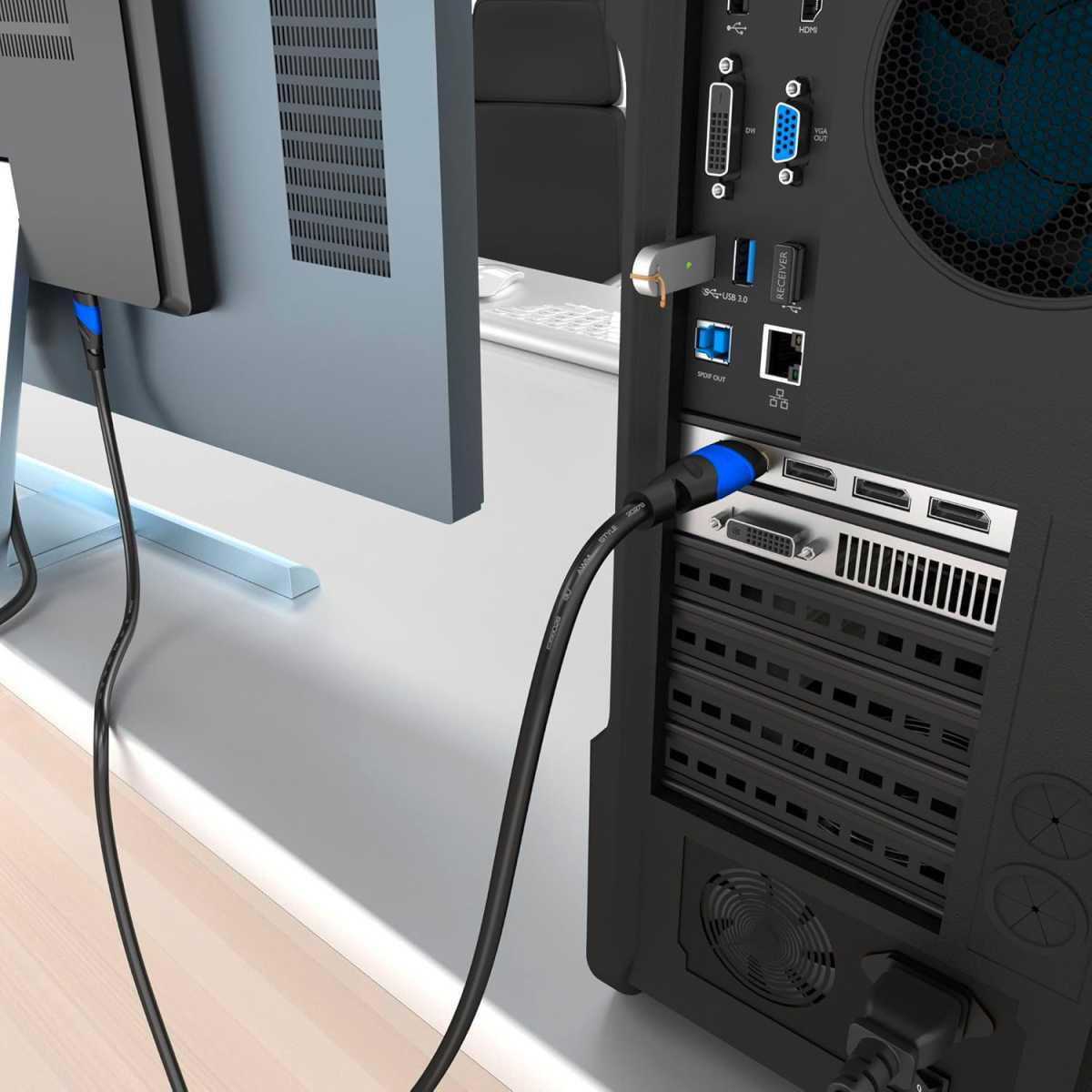
For demanding applications such as gaming, DisplayPort is usually preferred because it’s more likely to support higher refresh rates.
KabelDirekt
Anyone unable to run their monitor at the maximum refresh rate specified by the manufacturer should check whether it’s connected via HDMI.
Cable quality can also be a factor. While virtually every current DisplayPort cable supports its specified bandwidth, it’s more complicated with HDMI.
The full performance of HDMI 2.1 is only available with certified “Ultra High Speed” cables. Many older or cheaper cables do not meet these requirements, which in practice can lead to image dropouts, reduced refresh rates, or disabled features. Switching to DisplayPort usually eliminates this source of uncertainty immediately.
DisplayPort is also particularly relevant for users of Linux systems or dual-boot configurations. Because HDMI is subject to stricter licensing restrictions, certain functions are not always fully available there, especially when used with AMD Radeon graphics cards.
DisplayPort, on the other hand, is an open standard and is generally fully supported under Linux, enabling more stable output, variable refresh rates, and higher resolutions. Another practical advantage of DisplayPort is its support for monitor daisy chaining. This allows multiple screens to be connected in series, so that only a single cable runs to the graphics card.
This feature is particularly important in office environments for setting up multi-monitor configurations. Monitors with a DisplayPort output are required, as HDMI does not offer this capability. With HDMI, each screen requires its own connection to the graphics card. There are also many advantages to DisplayPort for modern laptops.
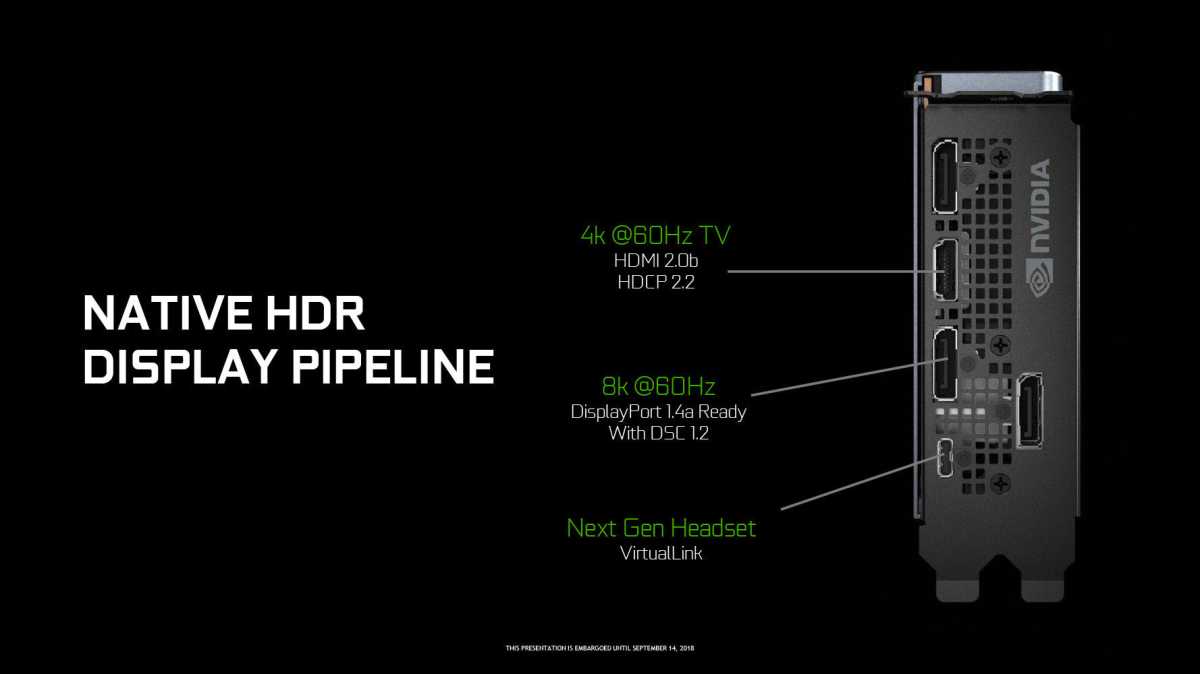
As early as 2018, the DisplayPort socket on an Nvidia GeForce graphics card was capable of displaying 8K content at 60 Hertz. In contrast, HDMI was limited to a maximum resolution of 4K at 60 Hertz.
Nvidia
Devices with USB-C ports compliant with the Thunderbolt or USB4 standards generally support DisplayPort Alternate Mode (DP Alt-Mode). With a suitable USB-C-to-DisplayPort cable, the monitor can be connected directly, often including power supply via USB Power Delivery (USB-PD).
This eliminates the need for power adapters, simplifies the workspace, and is significantly more convenient than traditional HDMI cables. Many modern monitors also offer USB-C inputs that process DisplayPort signals directly.
Graphics cards really illustrate just how important DisplayPort has become. Most models offer several DisplayPort outputs, but just a single HDMI port.
This is primarily intended for connecting to a television, as TVs generally support HDMI exclusively. Anyone who connects the monitor via HDMI instead blocks this port and limits their options for future upgrades. Switching from HDMI to DisplayPort is more straightforward.
In the vast majority of cases, it’s sufficient to connect the monitor with a DisplayPort cable and then check the desired resolution and refresh rate in the operating system’s display settings and in the graphics card driver.
Many users only realize after making the switch that the monitor now offers higher refresh rates or that variable refresh rate can now be enabled correctly. If HDMI is already working without issues, all desired functions are available, and the monitor is running at its maximum refresh rate, there is no immediate need for action.
In many typical PC setups, however, DisplayPort is the technically better choice. Anyone wishing to reliably make the most of image quality, stability, and gaming features should opt for DisplayPort and use HDMI to connect to TVs or consoles.
This article originally appeared on our sister publication PC-WELT and was translated and localized from German.