


At a glance
Expert’s Rating
Pros
- Available with 8TB to 24TB of capacity
- Runs on bus power (15 watts) alone
- Far cheaper per TB than SSDs
- Two years of data recovery
Our Verdict
With SSD prices still through the roof, the Seagate One Touch USB hard drive is one of the cheapest ways to up your terabyte storage count. It’s faster and vaster than 2.5-inch models, but can still operate on bus power alone. A neat trick shared by the recently reviewed X Vault.
Price When Reviewed
This value will show the geolocated pricing text for product undefined
Best Pricing Today
Price When Reviewed
8TB: $260
Best Prices Today:

While external 3.5-inch hard drives have always offered far more capacity and speed (at least for the last few years) than 2.5-inch types, they’re decidedly less portable.
Size and weight are the obvious factors. However, it’s the easy-to-misplace, extra-item-to-remember-and-pack, must-deal-with-the-cord-and-AC-outlet adapter that’s been the psychological tipping point. At least in my case.
Well, the which-to-choose decision just got noticeably more difficult as Seagate’s One Touch 3.5-inch USB hard drive runs off bus power (15 watts or better) alone. Yup, no AC adapter to worry about. Whew!
The One Touch requires 15 watts, so it won’t run off every USB port, but you’ll likely have at least one on your laptop or PC than can handle it.
The recently reviewed FireCuda X Vault, another 3.5-inch external wonder from Seagate, also runs off bus power.
Read on to learn more, then see our roundup of the best external drives for comparison.
What are the Seagate One Touch’s features?
Though it’s the same basic size and weight as the aforementioned X Vault (approximately 7.35-inches long, 5.1-inches wide, 1.5-inches tall, and 2.5 pounds), the One Touch is styled differently. It’s two-tone dark gray and pewter, sporting the wavy sculpted lines you’ll find on some of the company’s 2.5-inch USB HDDs. Which look you prefer will depend on, well… which you prefer. I lean towards the One Touch.
The One Touch features a single Type-C port on one end, that is offset to the left (when facing that end of the drive). Directly above it is a small power/activity light. That’s it. There’s no AC adapter port so you are indeed limited to a USB port with 15 watts, which generally means USB4 or 3.2×2, Thunderbolt 3 (or greater), or a charging port.
In all likelihood you’ll have at least one port that can handle the One Touch, but check your documentation to be sure.
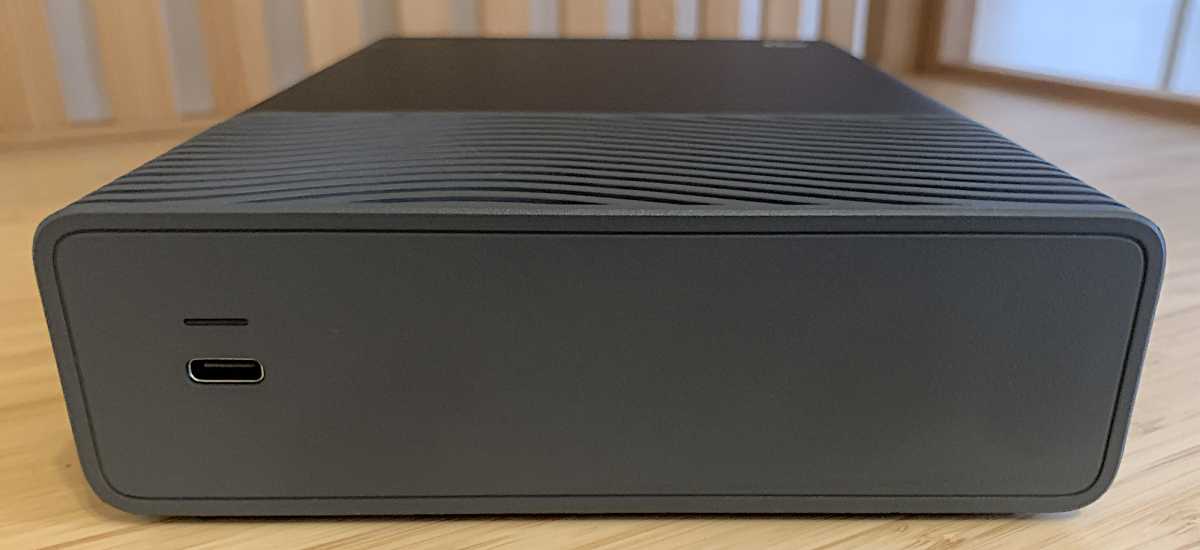
The Seagate One Touch rear panel with the Type-C port and activity light. There’s
no AC port so you must have a 15 watt or better USB port to use the drive.
Jon L. Jacobi
Four effective anti-skid rubber feet adorn the bottom of the One Touch, but they are relegated to the smoother metal portion of the exterior that makes up two-thirds of the enclosure. That leaves the bottom of the wavy plastic portion exposed — and that’s a good thing since the grooves in the waves underneath double as ventilation ports.
But the offset feet means you can also tip the unit slightly if you place something heavy on the front. A cup of coffee comes to mind, and maybe Seagate thought of that, because the grooves on top are solid, not ventilated. And don’t ask me why I thought about setting a coffee cup in an inappropriate location.
The One Touch was announced in 8TB (tested), 20TB, and 24TB capacities. All carry a two-year limited warranty (don’t drop it off the back of a truck) with two years of data recovery should it go belly up. That 24TB capacity is exclusive (so far) to the One Touch. The X Vault maxes out at 20TB according to the press release.
The Seagate One Touch is the only USB hard drive at this time to come in 24TB capacity.
How much does the Seagate One Touch cost?
Only the 8TB version of the One Touch was available at the time of this writing. It’s priced $10 less than the X Vault at $260. As you’ll see from the extremely similar performance numbers below, I’m wondering why.
Note that HDDs are mechanical and more prone to failure than SSDs. Because of that, I always run them in mirrored pairs if there’s anything important on them that’s otherwise not backed up.
Of course, as the reviewer of the backup beat, mine aways are and yours should be too. In fact, I always back up my SSDs, as well. Too many reader horror stories, plus a few of my own (including online) influence that decision. Remember the rule of three: original source, backup, and a second backup in a physically remote location. End of story.
See my roundups of the best Windows backup software and best online backup services for recommendations.
How fast is the Seagate One Touch?
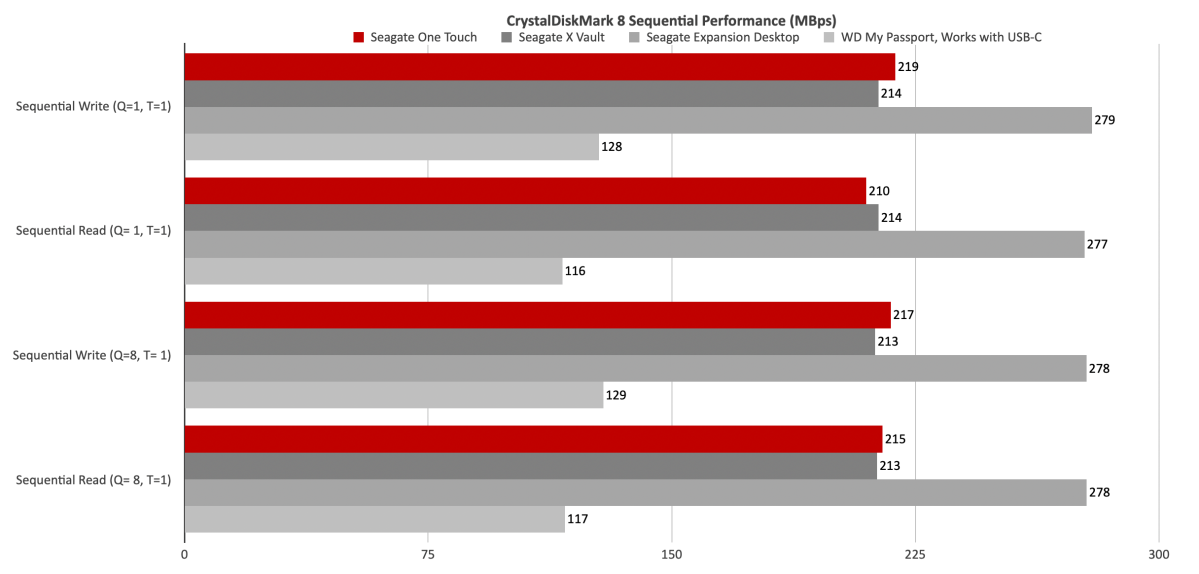
The One Touch performed right on par with the recently reviewed X Vault — slightly faster with synthetic benchmarks, and slightly slower with real-world transfers. Basically, a standoff. You’ll never notice the difference without a very granular stopwatch.
Both the One Touch and X Vault are roughly 80MBps faster than the average 2.5-inch HDD, but 60MBps slower than the previously covered Seagate Expansion Desktop with its higher-grade internal HDD — and AC adapter! Okay, AC may have its advantages, but I’m still impressed that Seagate makes any 3.5-inch HHD that requires only 15 watts.
The One Touch squeaked out a win over the X Vault in CrystalDiskMark 8’s sequential throughput tests, but obviously couldn’t hang with the Expansion desktop. The 2.5-inch WD My Passport, Works with USB-C is far slower than 3.5-inch models, but all 2.5-inch HDDs are. It’s here to compare the relative merits of the two sizes — I’m not trying to bang on a very fine product with a very long name.
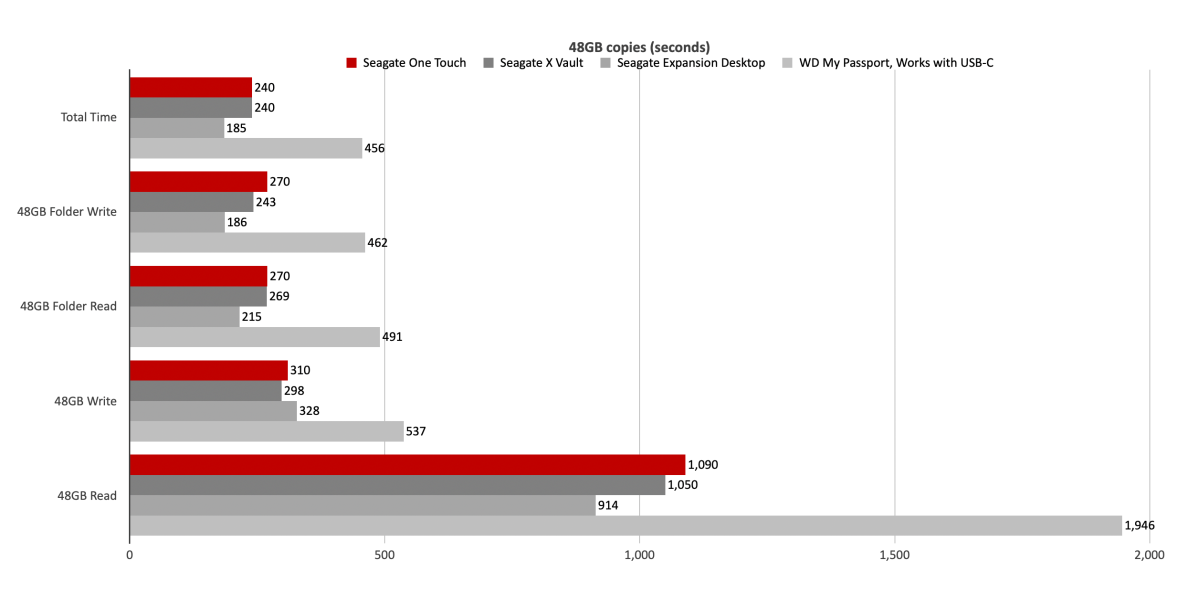
The 48GB transfer tests show that One Touch is only slightly slower than the X Vault in the real world, quite a bit slower than the Expansion Desktop, and light years quicker than the WD My Passport, Works with USB-C, which, again, performs as well as any 2.5-inch hard drive.
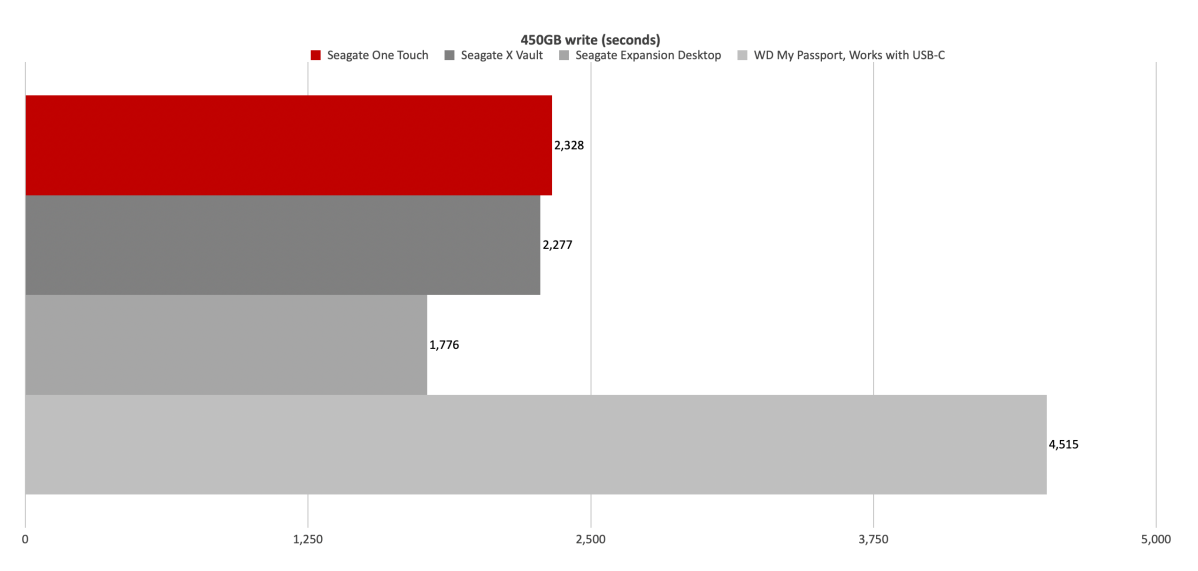
The 450GB write again shows that the One Touch is on par with the X Vault, a bit slower than the Expansion Desktop, and a whole lot faster than the typical 2.5-inch HDD like the WD My Passport, Works with USB-C. And yes, I realize that I’ve just said basically the same thing three times.
Yes, HDDs are slothful compared to SSDs. But they’re fast enough for streaming multimedia, and there are tasks such as backup that run in the background which you can just set, forget, and not worry about how fast they finish — just that they finish. For that, the One Touch is more than adequate and far faster than 2.5-inch models.
Should you buy the Seagate One Touch?
If you’re interested more in capacity than speed, then the Seagate One Touch provides a ton of space for far less money than an SSD, while freeing you from AC adapter misery that plagues most of the 3.5-inch competition.
Okay, misery is perhaps a bit harsh. But self-contained is better. Personally, I’d take it over the X Vault based on looks and possible savings. Yes, I can be that shallow and cheap, err… frugal.
How we test
Drive tests currently utilize Windows 11 24H2, 64-bit running off of a PCIe 4.0 Samsung 990 Pro in an Asus Z890-Creator WiFi (PCIe 4.0/5.0) motherboard. The CPU is a Core Ultra i5 225 feeding/fed by two Crucial 64GB DDR5 5600MHz modules (128GB of memory total).
Both 20Gbps USB and Thunderbolt 5 are integrated into the motherboard and Intel CPU/GPU graphics are used. Internal PCIe 5.0 SSDs involved in testing are mounted in an Asus Hyper M.2 x16 Gen5 adapter card sitting in a PCIe 5.0 slot.
We run the CrystalDiskMark 8.04 (and 9), AS SSD 2, and ATTO 4 synthetic benchmarks (to keep article length down, we report only the first) to find the storage device’s potential performance. Then we run a series of 48GB transfer and 450GB write tests using Windows Explorer drag and drop to show what users will see during routine copy operations. The far faster FastCopy (run as administrator) to show what’s actually possible.
A 25GBps two-SSD RAID 0 array on the aforementioned Asus Hyper M.2 x16 Gen5 is used as the second drive in our transfer tests. Formerly the 48GB tests were done with a RAM disk serving that purpose.
Each test is performed on a NTFS-formatted and newly TRIM’d drive so the results are optimal. External drives are set to Best Performance with Write Caching rather than Quick Removal.
Note that in normal use, as a drive fills up, SSD performance may decrease due to less NAND for secondary caching, as well as other factors. This issue has abated somewhat with the current crop of SSDs utilizing more mature controllers and far faster, late-generation NAND.