

Summary created by Smart Answers AI
In summary:
- PCWorld explores seven overlooked laptop features including Asus AI noise-canceling, MyAsus Target Mode for eyestrain reduction, and Lenovo’s new self-healing diagnostic tool.
- These hidden capabilities matter for productivity and comfort, offering automatic window dimming, advanced touchpad customization, and seamless device ecosystem integration across Samsung products.
- Key features include HP’s ring light functionality, Surface app touchpad controls, and sophisticated display color management that goes beyond basic blue-light filtering.
One of the unsung productivity heroes of your laptop is the humble utility app. It’s the piece of software your laptop manufacturer installs to manage and customize your device.
At its best, it’s a fascinating, nerdy collection of tools and features–things you never knew were possible. At its worst, it’s a collection of crapware selling you software and services that you don’t need.
These utilities vary by manufacturer. Some, like the Microsoft Surface app, are woefully cursory. Others, like the built-in Asus app, can go into extensive detail, offering you fine-grained control over ports and AI functions. Performance gaming notebooks often carry their own custom software that’s entirely different, allowing deep adjustments and monitoring of fan speeds, memory timings, or RGB controls.
Either way, these are some of my favorite apps to explore on any new laptop because you never know what you’ll find. In an earlier story, I showed what standard features you can expect to find within most utility apps, regardless of manufacturer. Here, I’m focusing on the more unique features I’ve found, specific to a single manufacturer.
This isn’t an endorsement of the best utility apps. Instead, use this as encouragement to dig into your laptop and see what these apps can do for you! I think you’ll be surprised.
E-reader mode (MyAsus)
You’ve probably heard of the blue-light filter within Windows, which helps minimize eye strain. Some laptops now go far beyond that.
Mark Hachman / Foundry
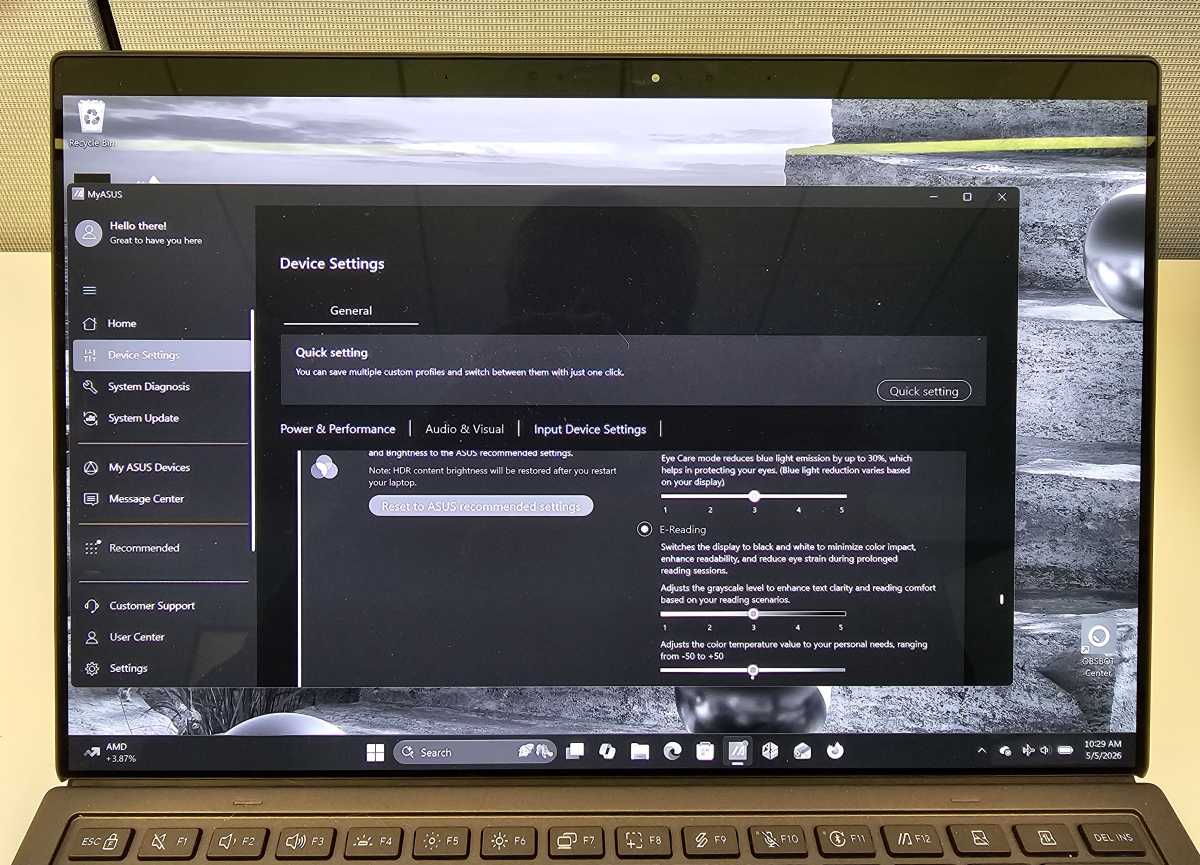
You’ll typically find sophisticated color controls within most utility apps, and some of those basic features have been merged into the Windows display settings, too (Settings > Display > Color Profile). They allow you to push the saturation up for more vivid color or make adjustments for creative work. The MyAsus app on Asus laptops not only lets you reduce blue light more aggressively, but it also gives you the option to remove it completely.
MyAsus calls this “E-Reading” mode, and it does just what it says: it turns your display to grayscale. It can be just the ticket at the end of a long workday when your eyes are tired. Combine it with something like the Reading Mode in Google Chrome to minimize distractions and provide a more restful background for your eyes.
AI Noise-Canceling Microphone (MyAsus)
The AI noise-canceling capabilities of Asus laptops are so powerful I called them out in a separate story. The combination of directional mics and the Asus algorithm (powered by the laptop’s NPU) do an incredible job of filtering out extraneous noise. In my testing, I played loud music and white noise from my phone, and placed it near my head. The mics filtered it all out flawlessly.
The MyAsus software goes a little overboard in that it can filter by direction or by speaker (even two), but it does a terrific job either way. I’m just not as sure about noise filtering on speakers, another feature MyAsus and competing utility apps offer. It can distort the output, while my brain does a better job at filtering out background noise.
Control TVs and other devices with SmartThings (Samsung Settings)
Samsung has gone to extraordinary lengths to connect its ecosystem of Samsung devices together, from phones to tablets to Galaxy Book laptops. And Microsoft has followed suit by connecting Android phones and other Windows devices via the Phone Link application. Still, Samsung puts considerable effort into its Samsung Settings (Connected Devices) utility app, adding features like automatically switching Galaxy Buds between your laptop and phone depending on which one you’re using.
Mark Hachman / Foundry
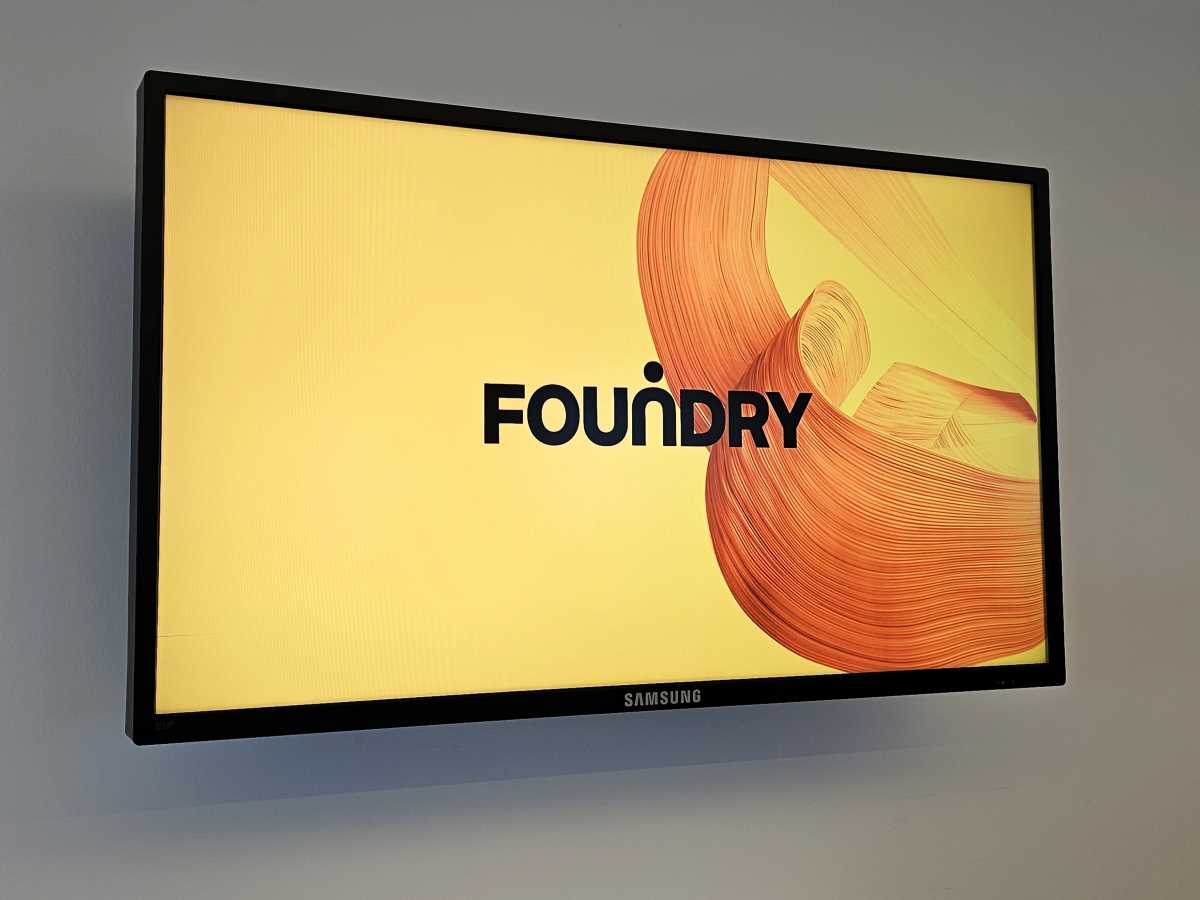
To this day, however, it’s the broader ecosystem — in this case, Samsung’s home consumer-electronics ecosystem — that has a leg up on everyone else. And you can control these devices from your PC!
(While our in-office TV is apparently locked down, Samsung TVs in neighboring offices aren’t. However, they flash a PIN code that you have to enter on your device to ensure that pranksters don’t hijack the display.)
Target Mode (MyAsus)
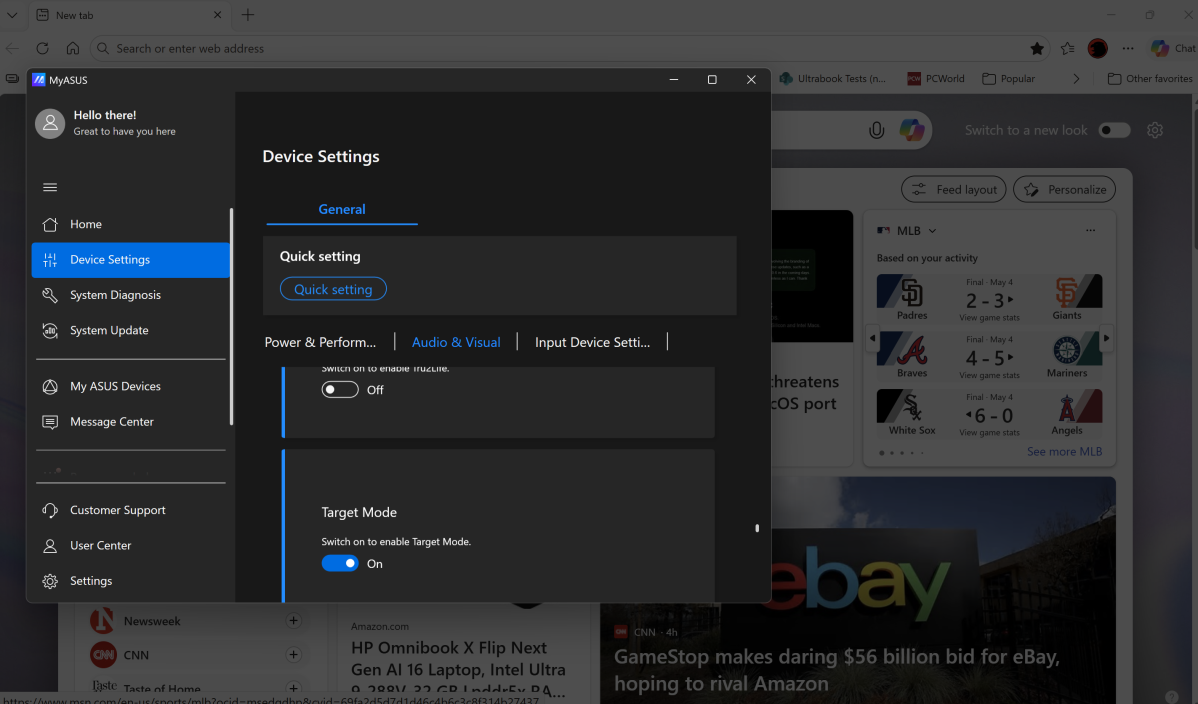
The MyAsus app identifies Target Mode as a power-saving feature, but I see it as another means for reducing eyestrain. Target Mode leaves your active window at full brightness, but then dims the other windows on your screen.
Target Mode is a bit like the latest addition to PowerToys, Power Display, in that you can dim any display on your desktop to the desired brightness. But Power Display requires a manual adjustment, while Target Mode does not. To be fair, Target Mode could use an update, as it dimmed my secondary monitor windows appropriately but never returned them to their previous state when I turned it off. It does a nice job on a single laptop display, though.
Mark Hachman / Foundry
Samsung also has a Focus Mode in its Samsung Settings that promises to do the same thing, but it seems to do relatively little.
Right-click region settings on the touchpad (Microsoft Surface)
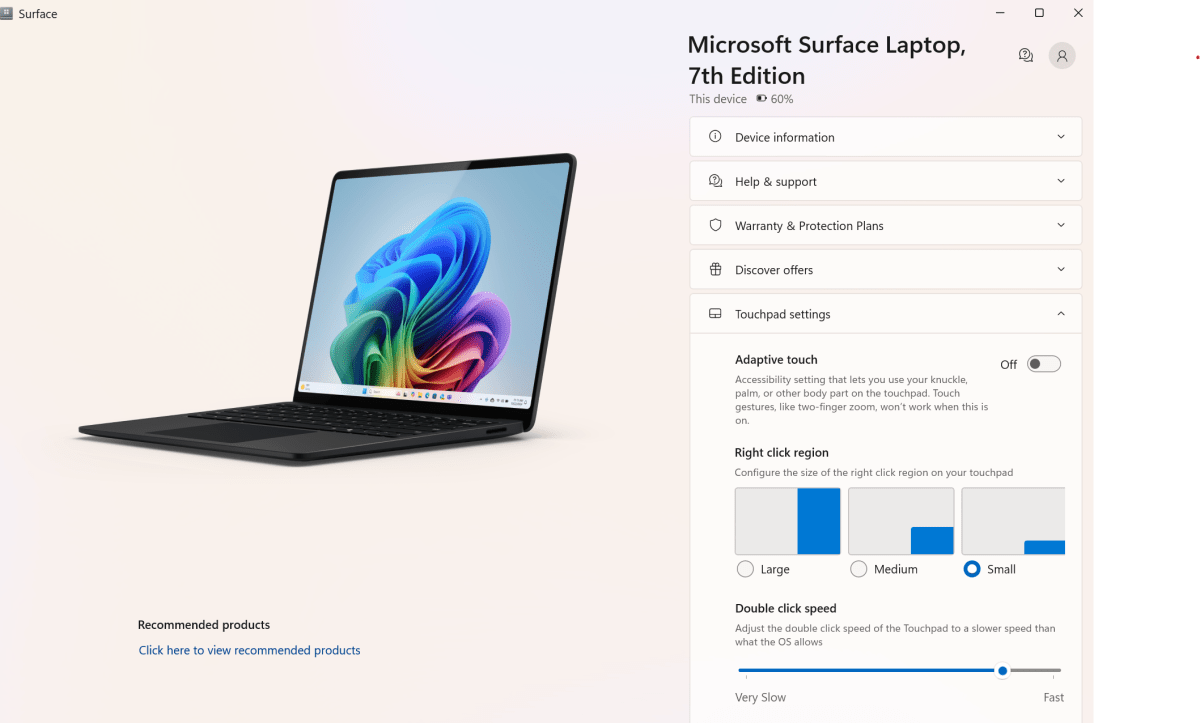
Microsoft’s Surface app is one of the worst utility apps I’ve seen. (MSI gives it a run for its money.) But, to its credit, it’s the only utility app I’ve seen that allows you to draw a boundary to establish where a touchpad’s “right click” and “left click” are.
Mark Hachman / Foundry
Do you rarely right-click on a file? If you do, you can define the right-click region as less than a quarter of your touchpad or subdivide it about as large as the entire right half. You can also set it to use a knuckle, palm, or other body part, as an adaptive setting for those who may lack fingers.
HP Enhanced Lighting (HP Enhanced Lighting)
HP’s collection of utility software is surprisingly bad, aligned more toward setting up a new printer and solving troubleshooting issues than providing capabilities that an average user might take advantage of.
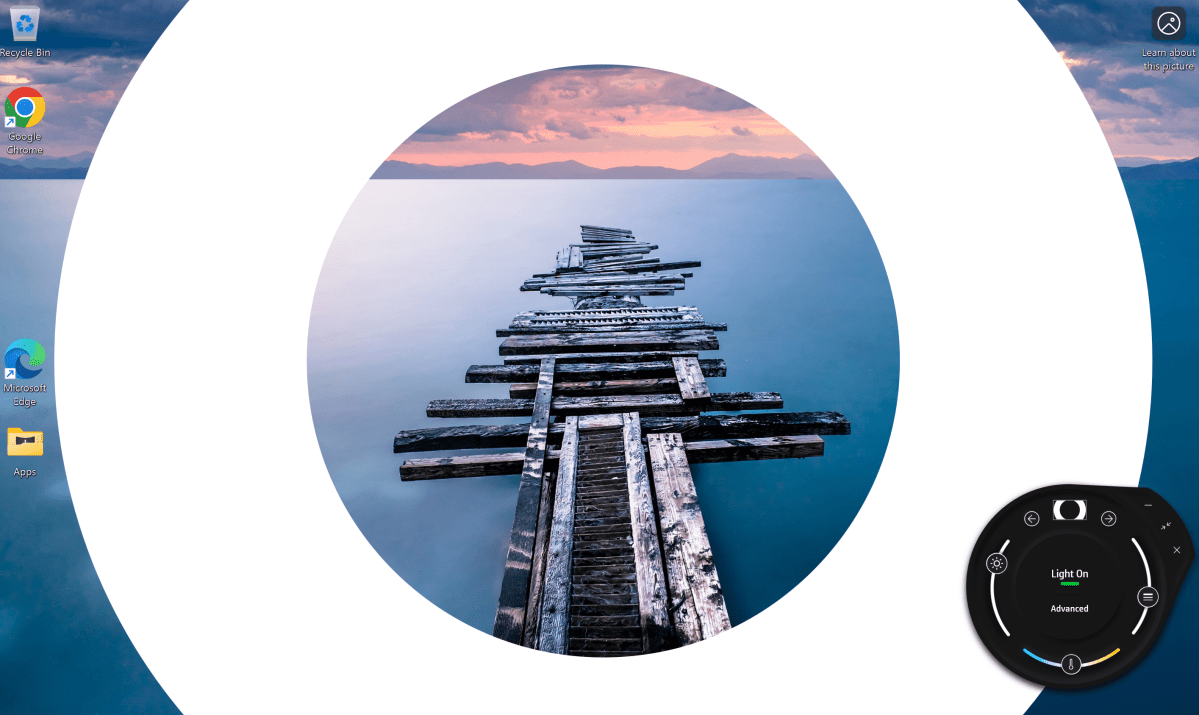
One small exception is HP Enhanced Lighting, which basically turns your screen into a giant ring light, a feature that already works fairly well on most laptops and monitors if you open a new document in Windows Notepad and then maximize the display brightness. The problem is that HP’s implementation carves out a significant chunk of your screen to do so — a screen that you might want to use to review documents on or simply see the person you’re talking to.
Mark Hachman / Foundry
On-demand PC self healing (Lenovo Vantage)
Lenovo just enabled this new feature as I was writing this story, so I can’t say for certain what it does or how effective it will be. But I do know that it’s free and doesn’t collect personal data.
“When enabled, Vantage automatically detects and fixes common issues,” the feature says. “You’ll receive helpful reminders and quick suggestions to keep your device running smoothly.”
Self-healing promises to detect potential issues, analyze the potential cause, and then repair them while potentially recommending other solutions. It scans for issues affecting your screen, camera, Wi-Fi, Bluetooth, battery, touchpad, keyboard, and audio. It also scans a list of about 30 applications (from Chrome to Deezer to Foobar2000 to Teams and Zoom).
Honestly, this is a service that I might consider not enabling, simply because I’m not sure what it does or what benefits it would provide on a new PC. But it’s also a feature that might bring peace of mind. I’ve enabled it, just to see what it will do in the real world.
To be fair, some of these features are better than others. I thought, for example, a Lenovo feature that auto-pauses a video when you walk away would be surprisingly useful. But it was only enabled with on-device local apps, not streaming services. It didn’t really work then, either. But that’s sort of the fun of the utility app, in my opinion — discovering what works and what works best for you.