

At a Glance
Expert’s Rating
Pros
- Unlimited storage for data
- Automatic or manual selection of source data
- Integrates with Windows Explorer for manual source selection
- Saves older versions of files
Cons
- Backup of files that are changed multiple times can lag up to 24 hours
- No secondary backup to local media
- A touch pricier than other unlimited services
Our Verdict
Carbonite’s online backup service uses Windows Explorer for data selection, and is simple, effective, as well as relatively affordable given the unlimited space it provides for your backups.
Price When Reviewed
This value will show the geolocated pricing text for product undefined
Best Pricing Today
Price When Reviewed
$96 annually for one computer (unlimited storage)
Best Prices Today: Carbonite Backup
The venerable Carbonite remains one of our favorite online backup solutions, thanks to unlimited storage for your backups and deep integration into Windows Explorer.
Author’s note: There is some inconsistency in the way the owner OpenText refers to this program, mostly calling it Carbonite, but also Carbonite Backup, Carbonite Safe, Carbonite Safe Backup, and Carbonite Safe CE (Consumer Edition?).
What are Carbonite’s features?
Carbonite offers unlimited online data backup with file versioning — i.e., it retains older versions of files. Versioning is what makes Carbonite a backup rather than a sync service. All data is encrypted and you may opt to keep the encryption key in your own possession or let Carbonite host it.
Read on to learn more, then see our roundup of the best cloud backup services for comparison.
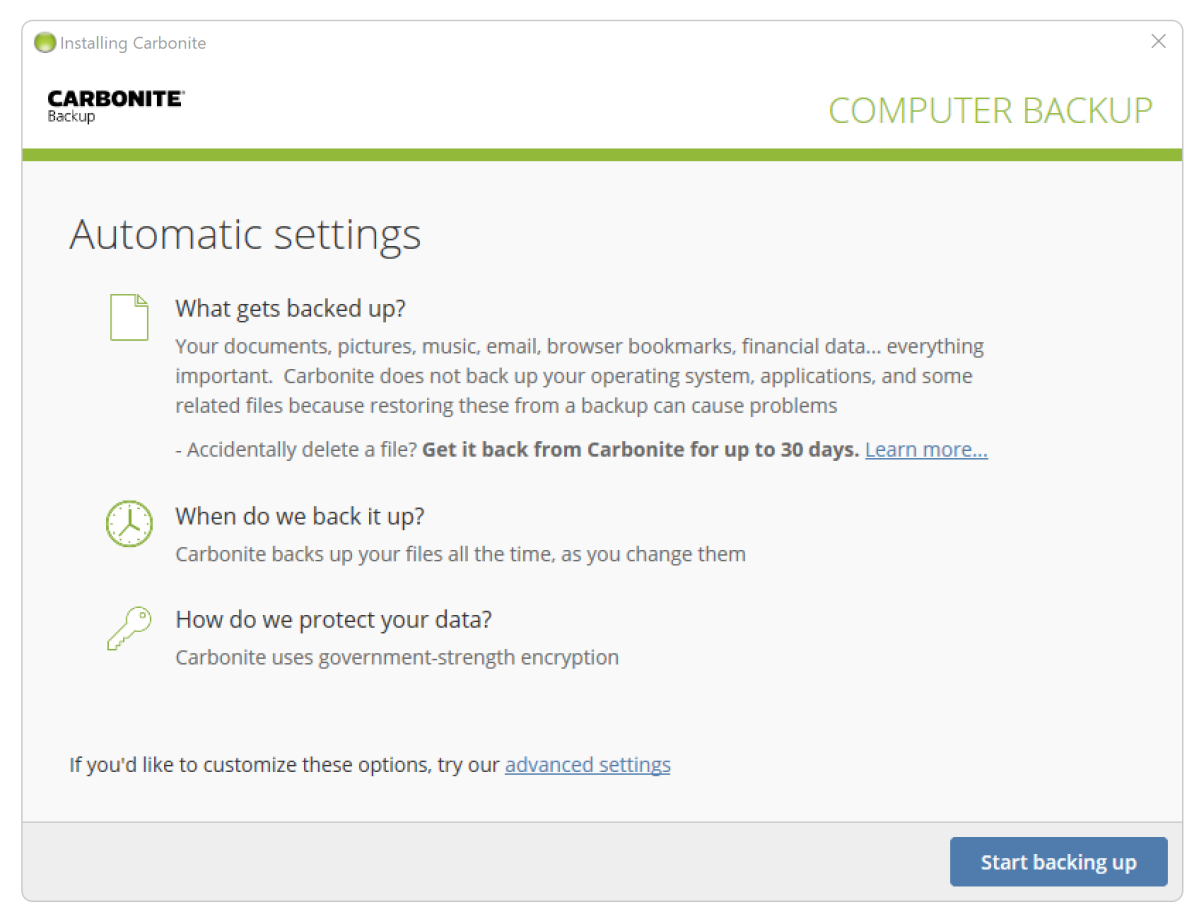
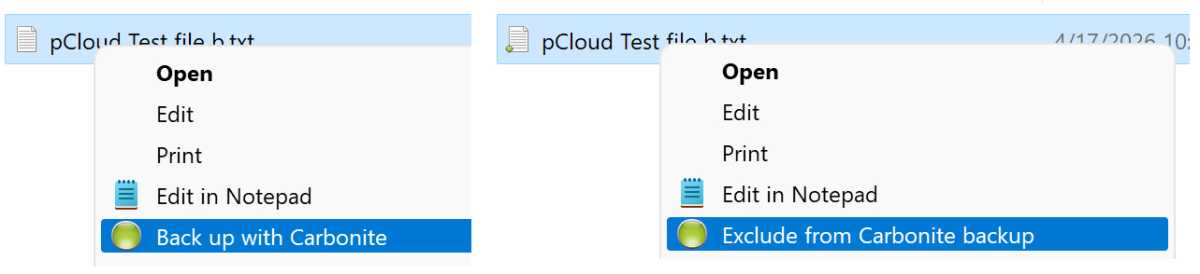
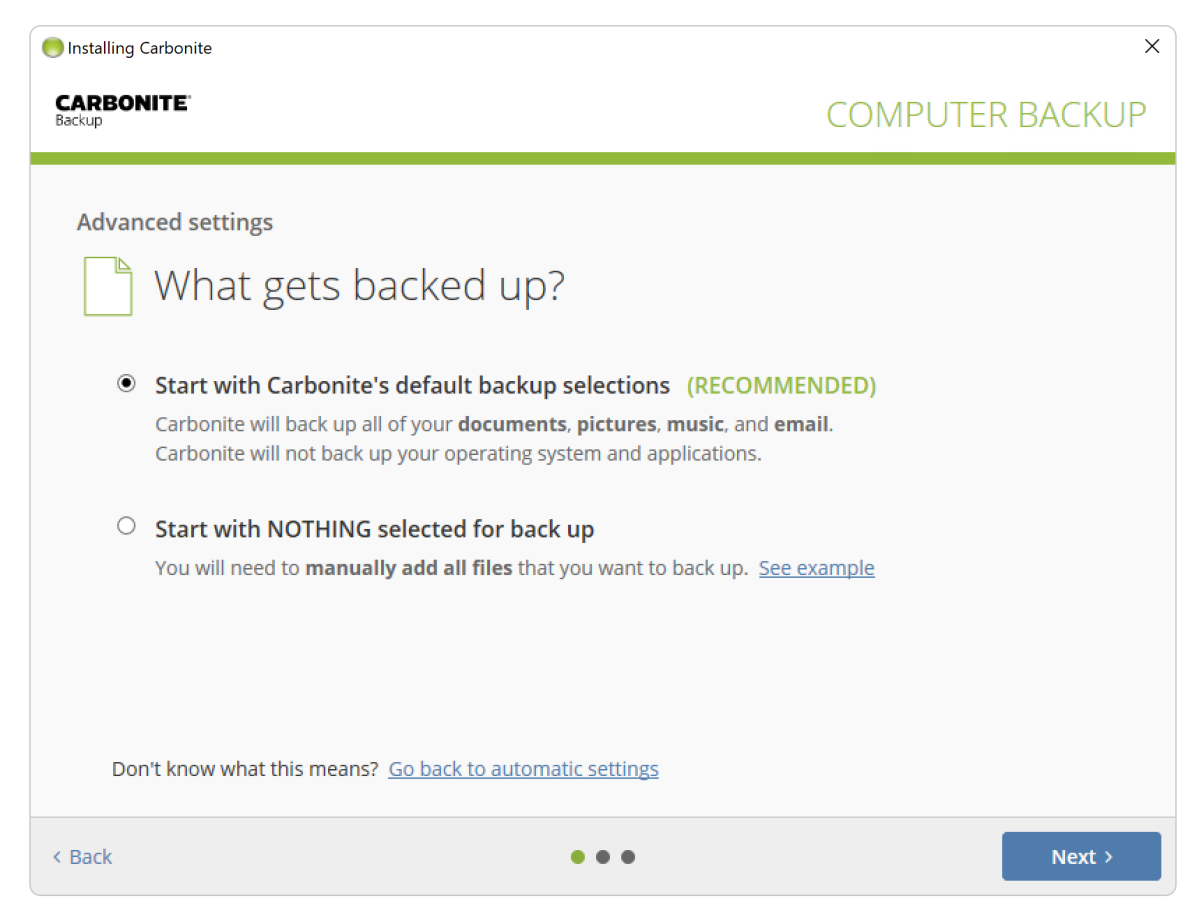
By default the program intelligently targets only the most common data and locations — i.e., the Windows documents, pictures, music, etc. folders, though there’s an option to start with no files or select your own folders. You may also add or subtract files and folders from the backup via Windows Explorer by right-clicking and selecting the appropriate option shown in the image below.
There are no jobs in Carbonite as such, just the single backup task that uploads the data you select to Carbonite’s online storage farm. Which brings me to a minor gripe — the lack of a local secondary destination such as an external drive. Local backups are far quicker and easier to restore. Look to Window’s own File History for that. Try Macrium Reflect Free for whole partition/drive image backups.
If I have any other complaint, it’s the limited online viewing (images) and lack of editing. Carbonite is for backup and storage, not working online.
If you fall into that group of users who store essential data outside of the common locations or simply want to choose what you want backed up on your own, Carbonite makes it very easy (Windows 10) to relatively easy (Windows 11) to add source folders and files to your backup.

Note the dots on the folders showing their backup status. Orange needs backing up, green means backed up.
Carbonite also features a clever method of signaling the backed-up status of a file or folder by superimposing a tiny colored dot on the icon: orange for backup pending and green for already backed up, etc. (See above.)
Testing on two PCs, these dots were present; however, on a third testbed they were not. Carbonite tech support indicated that this was likely due to other software having hooked into this ability. After a Windows re-install, the issue disappeared so we’re assuming they were correct.
Carbonite skips granular scheduling in favor of a limited form of continuous data protection (CDP). Continuous backup generally means files are backed up soon after they change. In this case, however, there’s a significant limitation in that only one change is backed up in near real time.
Subsequent changes to a file may not be backed up for another 24 hours. For instance, if I were working on this article in Word, and saving regularly as is my habit, the final version might not be backed up until the next day — even if I clicked on the Back up now button in the settings area.
Carbonite also offers once-a-day backup, which will be more than sufficient for most users. To be honest, I’d rather set this for the end of the workday (you may choose the hour) than rely on Carbonite’s form of “continuous,” which might not back up until well into tomorrow. Unless I want every version I’ve saved, that is. I generally don’t, but again, Windows File History can take care of this.
Restoring data from Carbonite is as simple as selecting “Get my files back” from the main page of the Carbonite client. Now you’re taken online if you want to “Choose files,” or you’re stepped through the process in the local client if you choose “Get all of my files.”
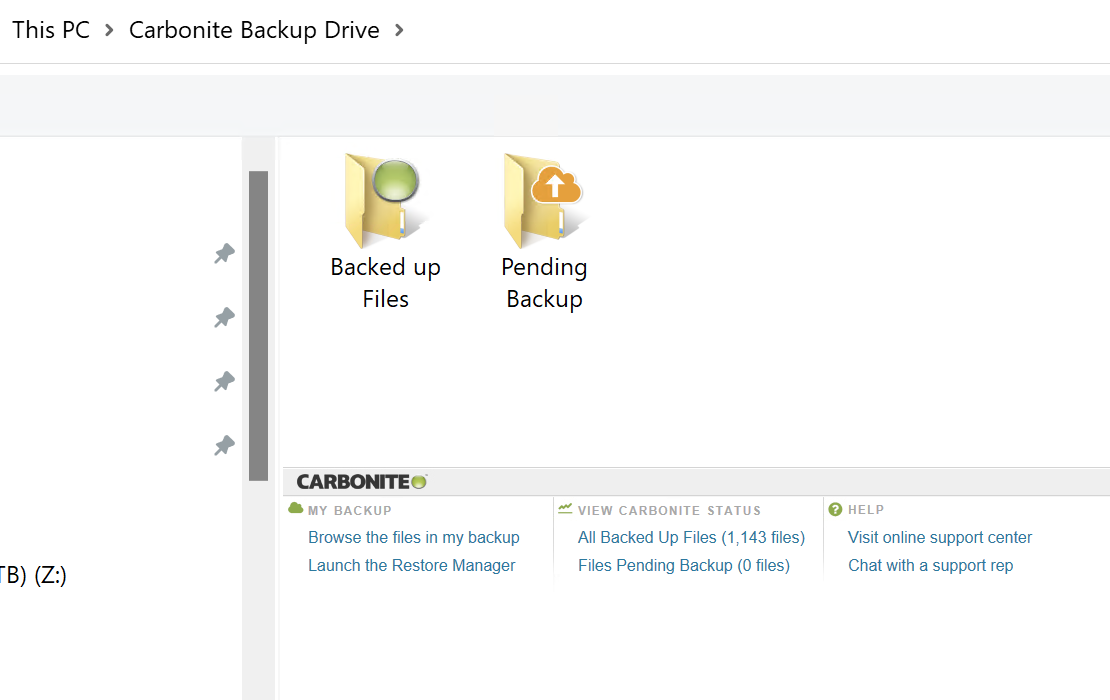
You can also use the Carbonite virtual drive. However, this can only be found when you select This PC (shown below) from the Windows Explorer naviagation tree — it’s not listed in the tree itself or Explorer as internal, external, and even virtual drives normally are.

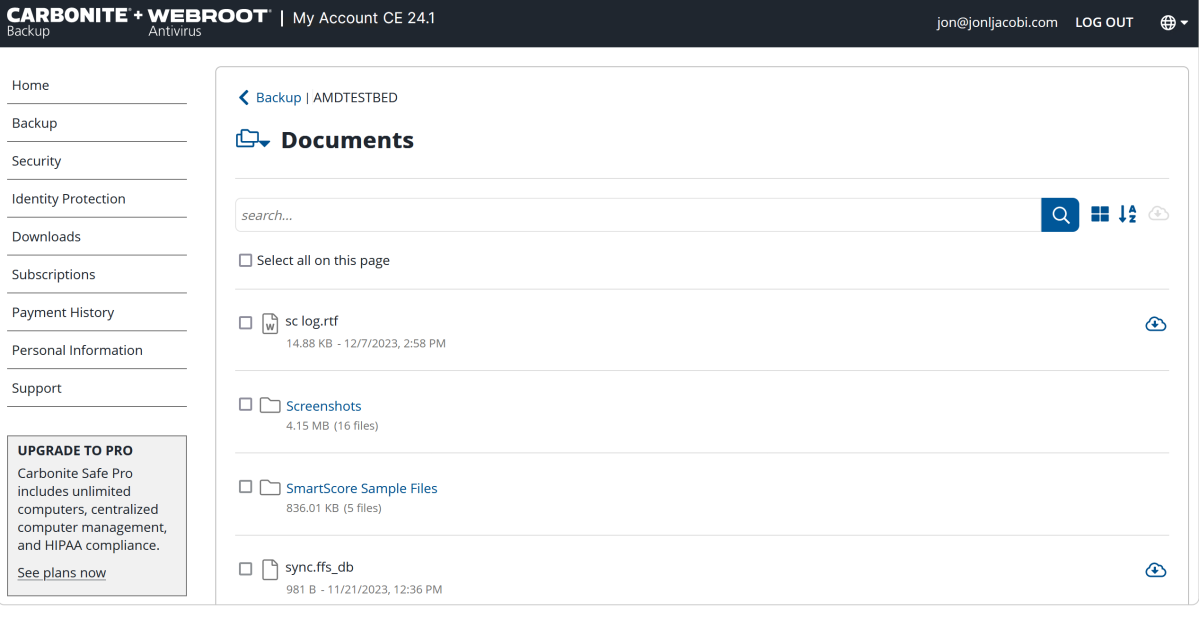
You can also skip the client software altogether and download data directly to any PC you choose from the Carbonite website after signing in with your login and password. Note that you can’t drag and drop or otherwise upload files to Carbonite via your browser. I agree with the practice, this is about backup, not file sharing.
Note that while older versions of files are retained (aka versioning), you’ll need to right-click over the file and select “Restore previous versions” to see them — they’re not displayed by default. Clean, but perhaps not intuitive to those who aren’t accustomed to context menus.
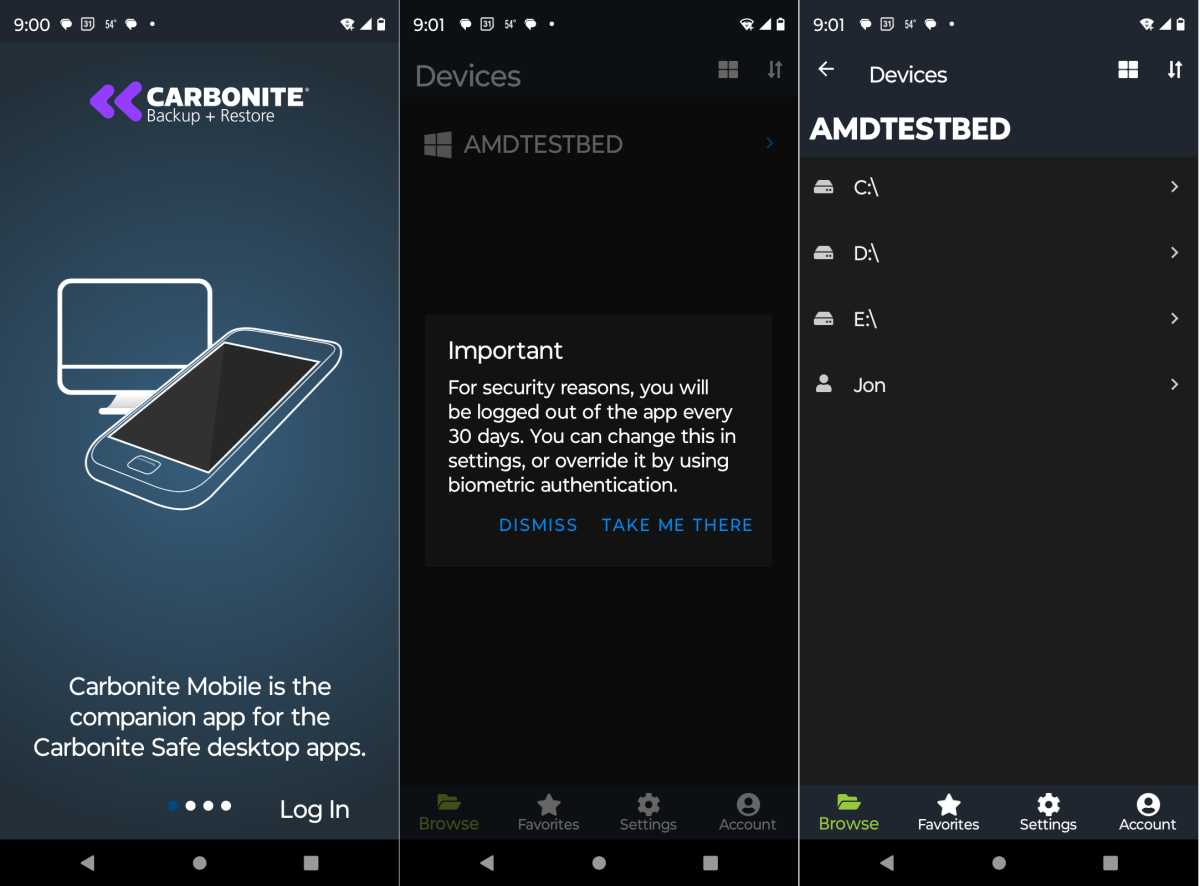
Carbonite also provides clients for iOS and Android. These provide access to files, but don’t back up anything from the phone.
Note that if you uninstall Carbonite, you’ll need to reboot before the status dots on the folders and files will disappear.
How fast is Carbonite Backup?
I noticed no performance hit at all while using Carbonite in continuous backup mode while backing up around 500MB worth of frequently changed files. That’s probably because the backup is not done in real time, or even continuously in the traditional sense.
Carbonite told us that files will be backed up within 10 minutes of the first recorded change, but subsequent changes may not occur for up to 24 hours. My last go-round with the program, subsequent changes seemed to upload far more quickly. However, this time there were status notes on the virtual drive saying the “File will be backed up again in 23 hours” and at eight hours and counting, most were still in the Pending Backup folder.
Unless you want to save every version of your highly edited files, you might be better off with a once-a-day backup.
These experiences all refer to the Basic version of Carbonite that I tested. The far more expensive Professional versions may behave differently when it comes to “continuous” backup.
How much does Carbonite cost?
Carbonite’s single-computer Basic plan is $96 a year, the Plus plan with support for a single external drive is $132 a year, and a Prime plan with courier delivery of your backup is $162 a year. All plans include unlimited storage, but the Basic plan doesn’t automatically back up videos and doesn’t support external drives.
There are first-year discounts in place that amount to $76 for Basic, $79 for Plus, and $97 for Prime. These fall back to the standard pricing described above in subsequent years.
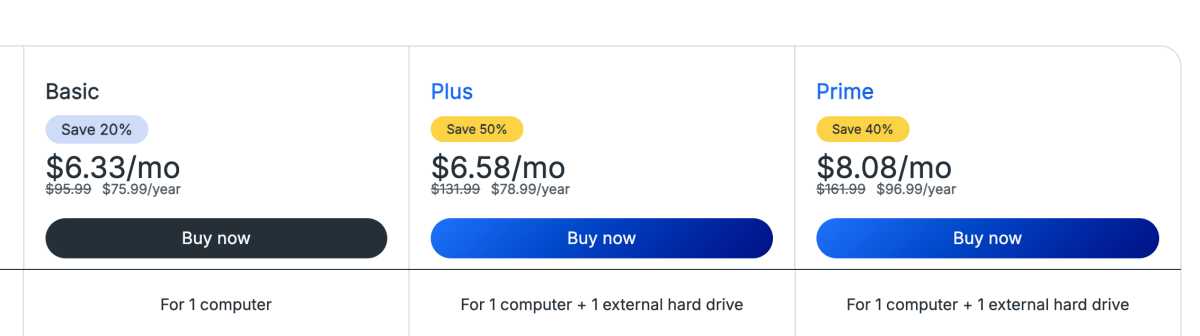
Basic, which is the plan I tested, doesn’t support network locations or logical drives mounted with cloud management software. It also lacks the Webroot antivirus featured in the two pricier plans.
Carbonite offers a comprehensive comparison of pricing and features to help you decide. Note that you’ll see any current discounts at that link, and these may not appear if you click “buy” in the local client software.
There is a free 15-day trial available so you can kick the tires and decide if Carbonite is your cup of tea.
Should you buy Carbonite Backup?
Carbonite (the Basic versions) is a capable, easy-to-use, set-it-and-forget-it backup service that eliminates any worries about running out of room when backing up your stuff. I wish the backup intervals were a bit tighter, but that’s a minor complaint.
Editor’s note: Because online services are often iterative, gaining new features and performance improvements over time, this review is subject to change in order to accurately reflect the current state of the service. Any changes to text or our final review verdict will be noted at the top of this article.
This article was edited on April 28, 2026 to reflect name and price changes, as well as changes to the actual program.
How PCWorld tests software
All software is currently installed and tested on an Asus Strix Z790-I Gaming WIFI motherboard sporting an Intel Core i5-12400 with 64GB of memory (two 32GB Kingston Fury DDR5 4800MHz modules), running Windows 11 Pro 21H2. Yes, that is older software so you may note some discrepancies in methodology here and there if you’re running newer versions of Windows.
Storage is courtesy of both Kingston and Seagate 2TB NVMe SSDs.