

Summary created by Smart Answers AI
In summary:
- PCWorld highlights that modern Chromebooks have evolved beyond basic browser functions and can run Android apps from Google Play Store for enhanced functionality.
- Essential recommendations include VPN services like Proton VPN for privacy and geo-restricted content access, plus photo editing apps such as Snapseed, Photoshop Express, and Pixlr.
- Installing the right Android apps can significantly improve Chromebook utility, making these devices competitive alternatives to traditional PCs and Macs.
Macs and PCs are no longer the only options for those looking to buy a computer. One of the fastest-growing categories is the Chromebook, Google’s own line of devices.
Initially, Chromebooks were low-cost machines largely limited to the Chrome browser. In recent years, more premium Chromebook models with greater processing power have entered the market.
In most cases, you can download Android apps to your Chromebook via the Google Play Store. While many apps will run, there’s no guarantee they’ll perform perfectly. Still, there are several apps that every Chromebook owner should consider. Here are the most important ones.
Further reading: The best Chromebooks of 2026
AI without Google
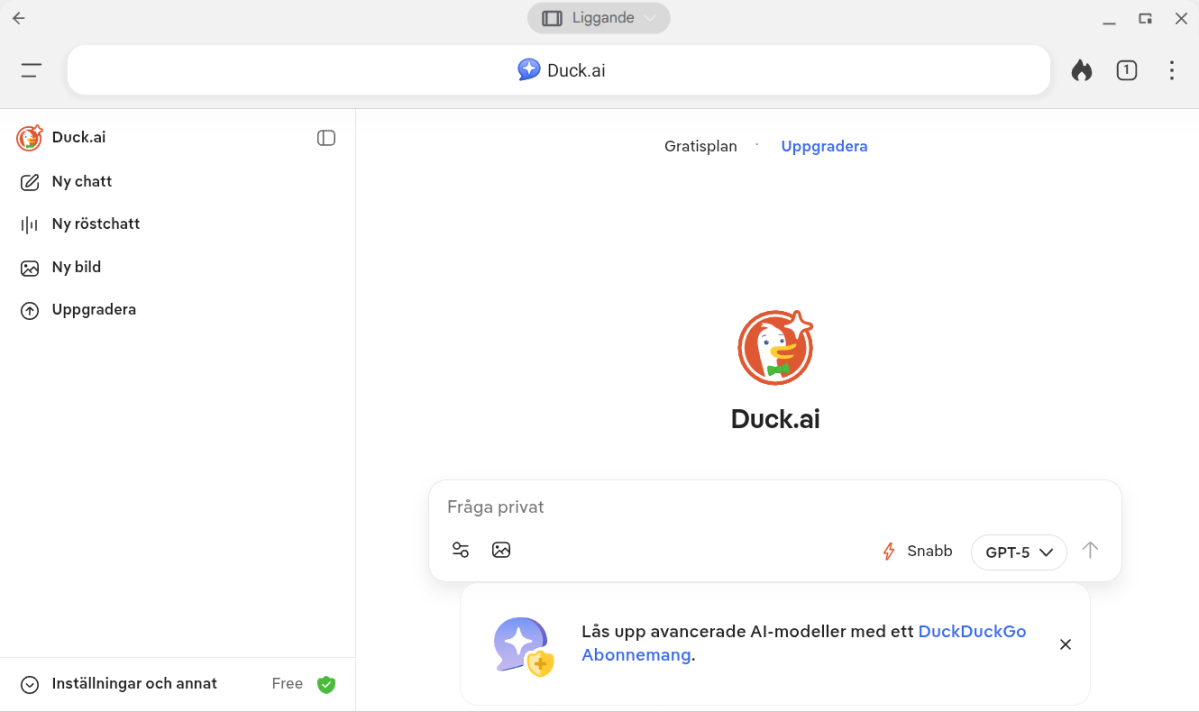
The web browser is the most important program on many computers, and on a Chromebook, Google Chrome comes built-in. However, there are other alternatives like DuckDuckGo. It’s a privacy-focused browser with its own search engine and AI service, offering an alternative to Chrome, Google Search, and Gemini.
Foundry
Browse anonymously
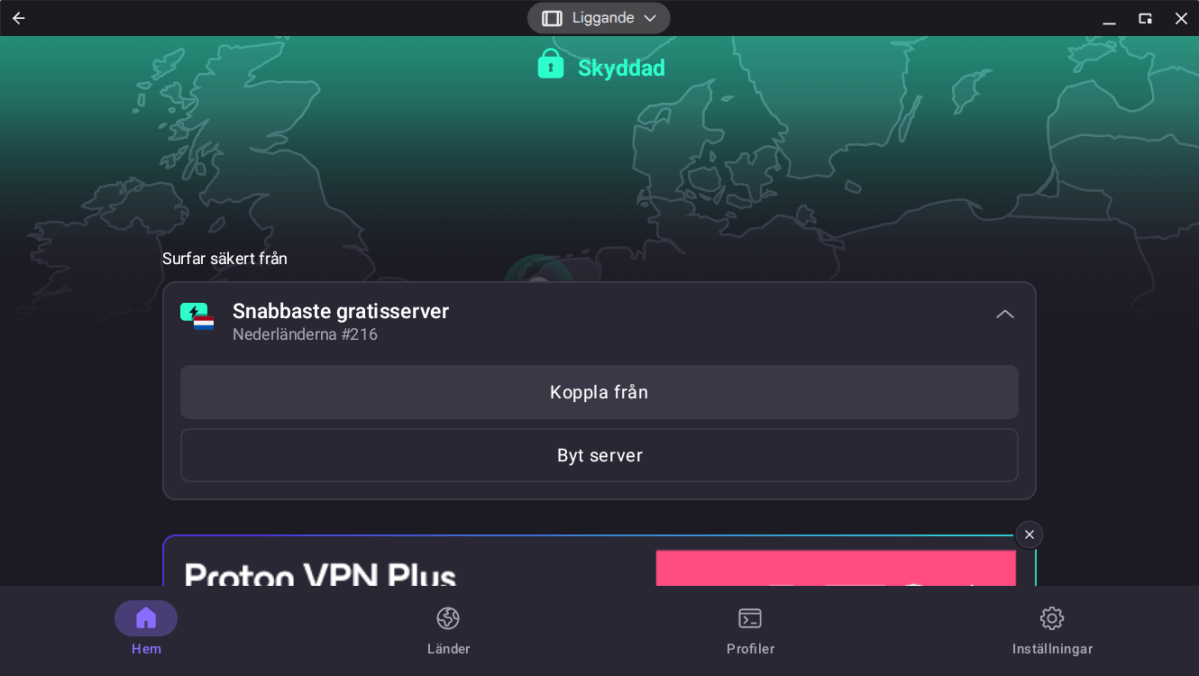
Are you worried about being monitored while browsing on your Chromebook? One solution is to use a VPN service such as Proton VPN.
A VPN service means you don’t connect directly to a site. Instead, your browsing traffic goes through an external server. This makes you more anonymous and allows you to appear as if you’re browsing from another country. This can make it possible to access foreign streaming services and other sites that may be restricted in your region.
Proton VPN offers a free plan with no data limits. However, higher speeds and the ability to choose your server location require a paid subscription.
Foundry
Turn your Chromebook into an e-reader
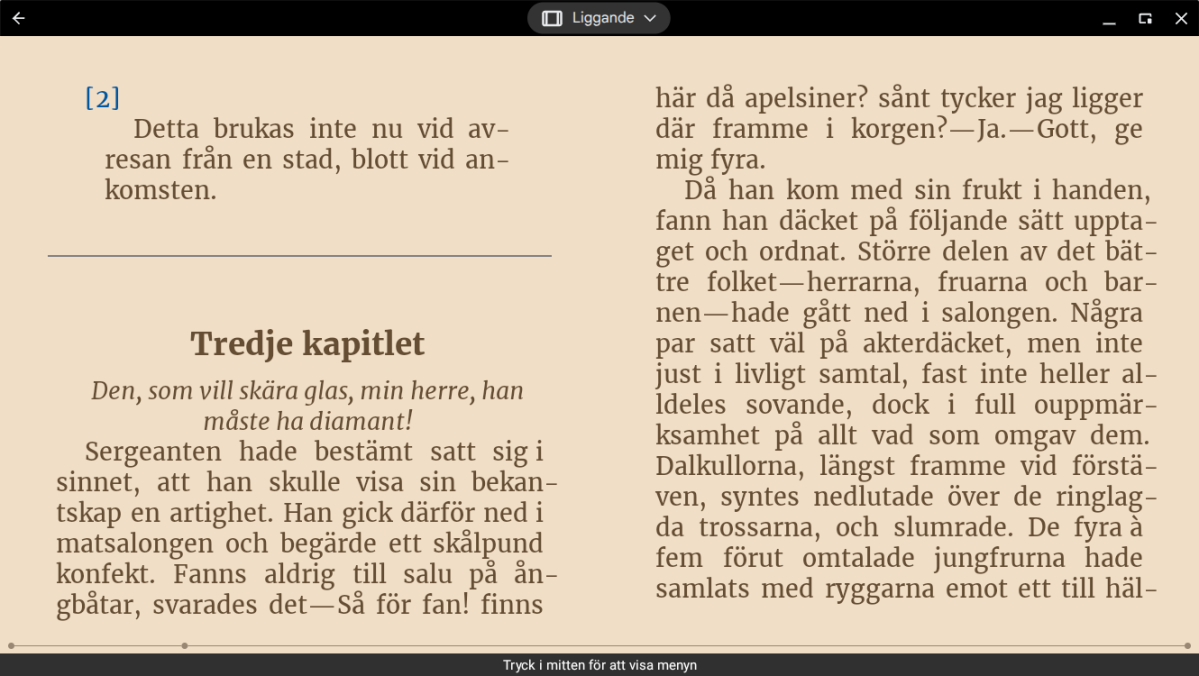
With the right app, your Chromebook can become a powerful e-book reader. A good free option is ReadEra, a simple and minimalist app that supports both e-books (EPUB files) and PDF documents.
Another popular free option is PocketBook Reader, which works the same way. If you only need to read PDFs, Adobe Reader is, of course, a viable option.
Foundry
Easier ways to manage files
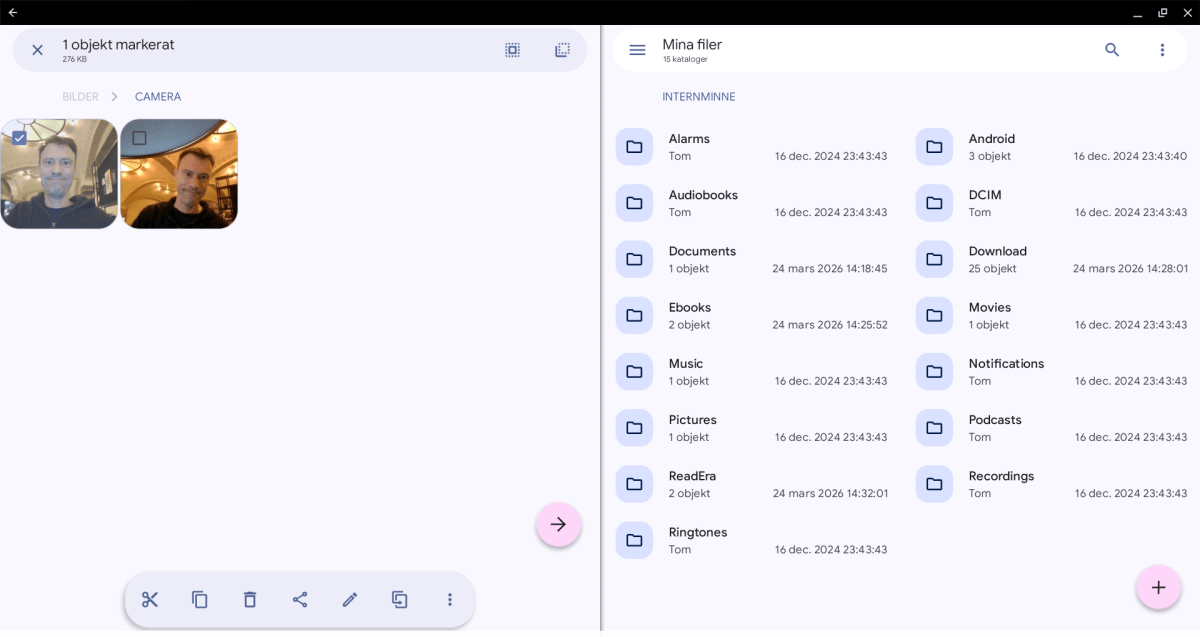
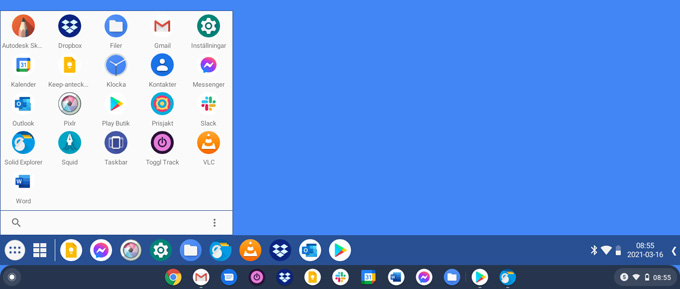
If you don’t like Chromebook’s built-in file manager, you can try Solid Explorer. Its dual-pane view makes it easier to move and copy files. The basic version is free, though you can pay to remove ads.
Foundry
Do you like the Windows 10 Start menu? If so, you can install Taskbar, which adds a similar feature to your Chromebook. You can also add widgets to your desktop – small tools that show things like a clock or upcoming calendar appointments.
Foundry
Play videos in any format
No matter which computer you use, playing video files can be a problem. Streaming services like YouTube work smoothly, of course, but once you start dealing with downloaded video files, issues can quickly arise.
One solution is to download the VLC media player. It’s a handy app for playing all kinds of media, and its biggest advantage is that it supports almost every conceivable audio and video file format.

Foundry
Listen to podcasts
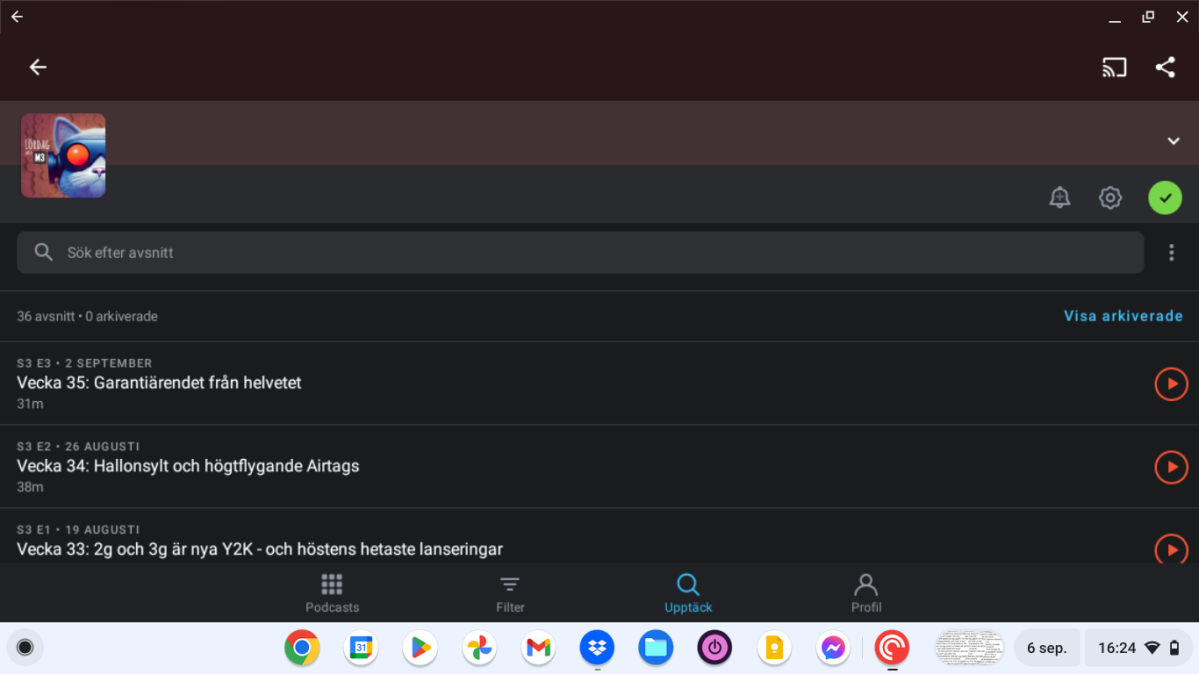
A Chromebook works well for listening to podcasts. You can do this in Spotify, or use a dedicated podcast app such as the popular Pocket Casts.
Foundry
Photo editing apps
Editing digital photos on a smartphone can be fiddly, while using the larger screen on a Chromebook is, of course, much easier.
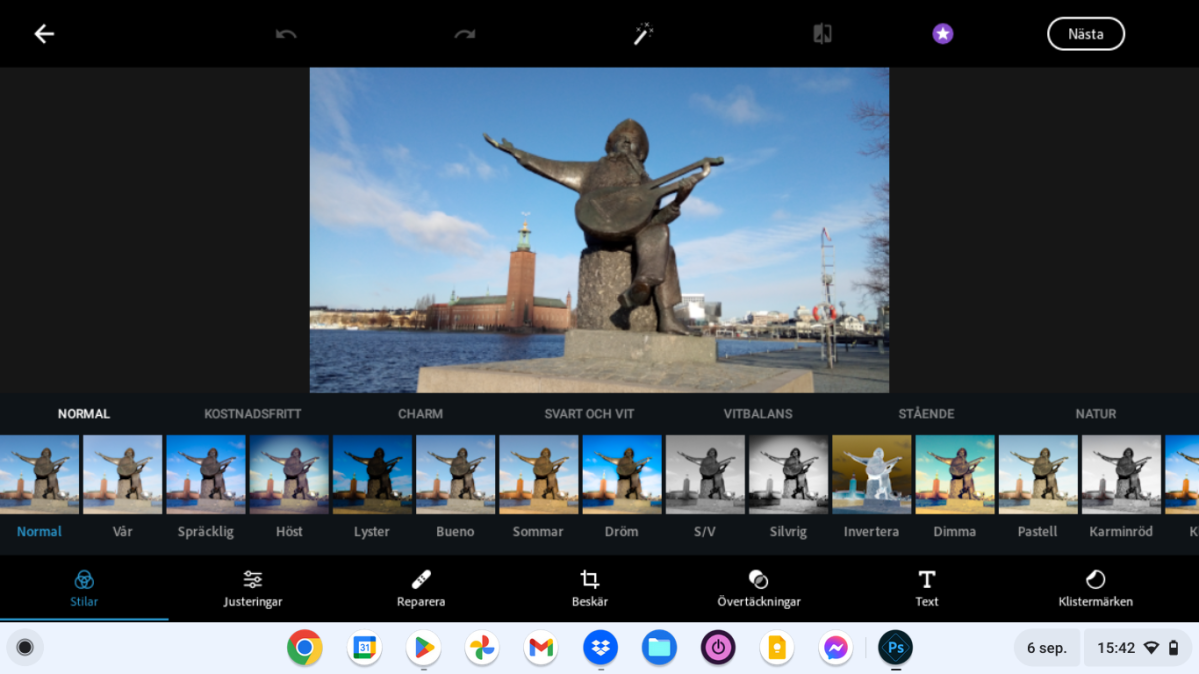
One of the best tools is called Photoshop Express, a slimmed-down free version of the professional Photoshop software. It lets you crop images, adjust lighting, remove red-eye, create collages, and add frames, among other things.
There are many good tools for editing photos on a Chromebook. One powerful yet simple app is Pixlr, which allows you to edit photos, create collages, add frames, and more.
Another good option is Snapseed, Google’s own app for more advanced users.
Foundry
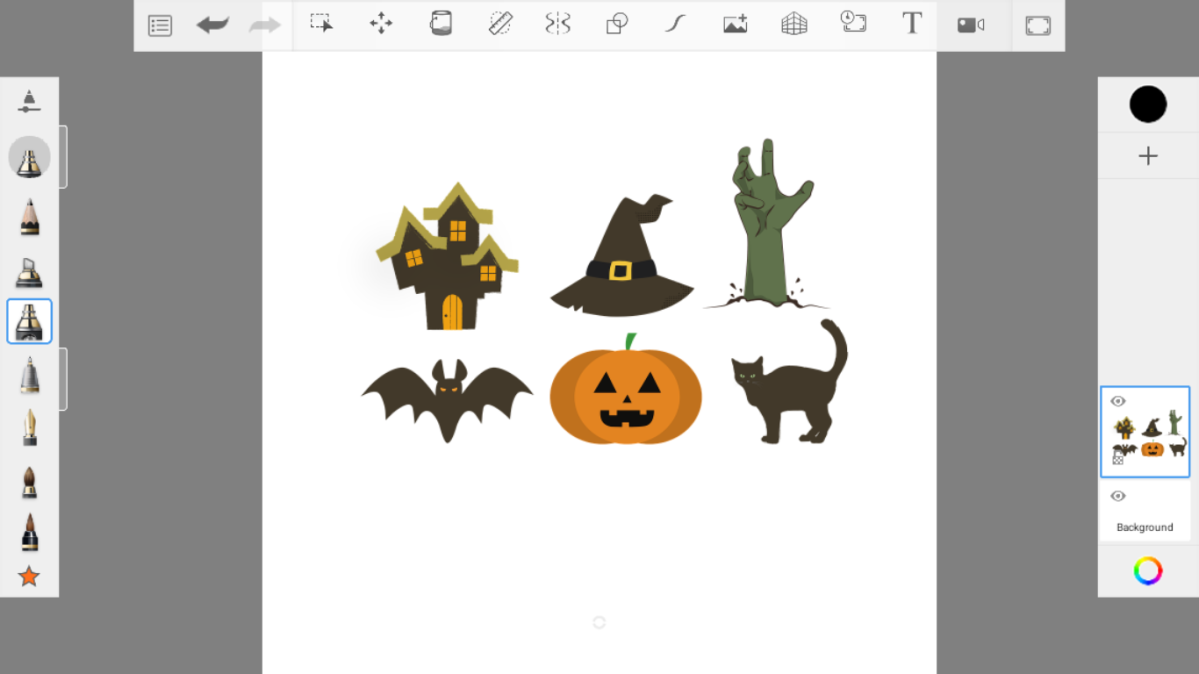
As many Chromebooks have touchscreens, they’re well suited for drawing, sketching and doodling. Sketchbook is an app that, despite being free, is surprisingly powerful. That said, the learning curve is pretty steep, especially if you’ve never used a drawing program before.
Foundry
Taking notes
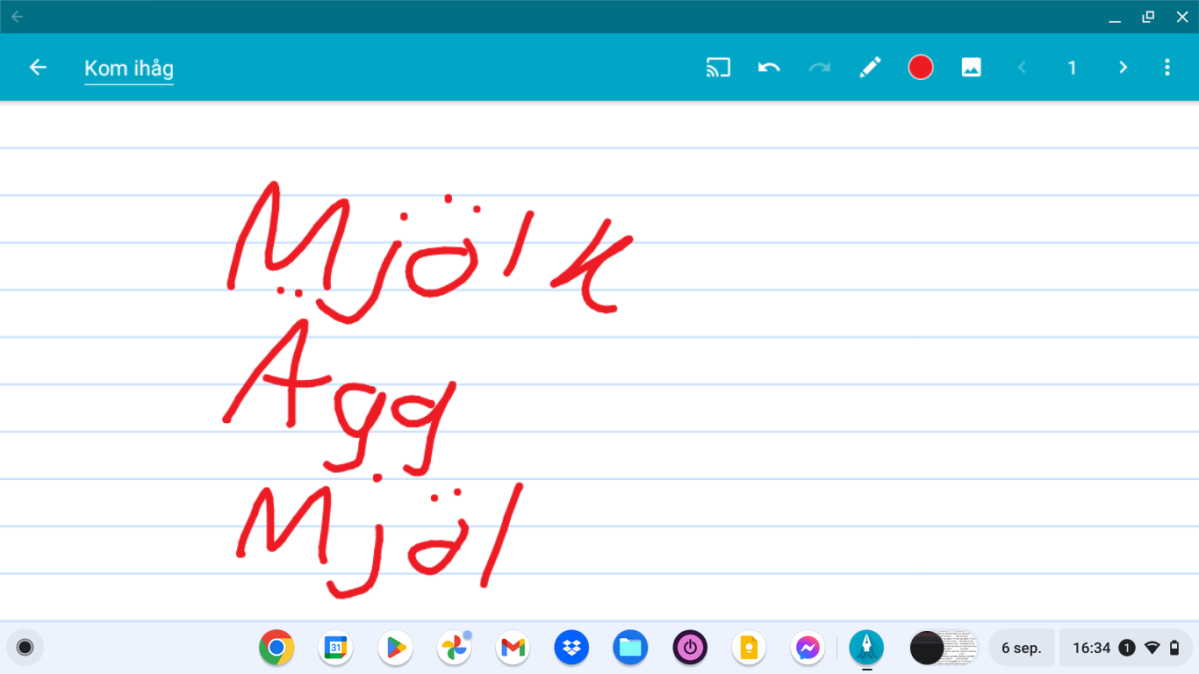
Touchscreens are great for note-taking (if that’s your thing!). If you want to do this using the keyboard, Google Keep is a good option, but if you prefer your finger or a stylus, take a look at Squid. The app transforms the screen into “a blank sheet of paper,” allowing you to take notes however you like.
Foundry
Create your own AI podcast
A more powerful notepad is Google’s smart service NotebookLM. It isn’t designed for quick, short notes, but rather for handling large amounts of information. You can upload text, audio, images, video, documents, and links all in one place, where the AI can find and analyze the material.
You can ask questions, generate summaries, and even create podcasts and vlogs with digital voices.
This article originally appeared on our sister publication PC för Alla and was translated and localized from Swedish.