


SwitchBot Lock Vision Pro
SwitchBot’s Lock Vision Pro is a great product for users looking for an affordable smart lock solution with a very full-featured set of authentication options.
Getting locked out sucks. Besides just being incredibly inconvenient, it can also prove dangerous and expensive. But luckily for all of us, we’re basically living in the future, and locks have gotten so robust with their feature sets that there are fewer and fewer excuses for getting locked out in the first place all the time. With its new Lock Vision Pro, SwitchBot takes that kind of forward thinking to the extreme, offering a smart lock with its own redundant power supply and over half a dozen different ways to authenticate your access.
Is this the end-all, be-all of smart locks, or has SwitchBot bitten off more than it can chew? Let’s take a look at exactly what the Lock Vision Pro offers, and how well it performs in day-to-day usage.
Getting started with the Lock Vision Pro

Stephen Schenck / Android Authority
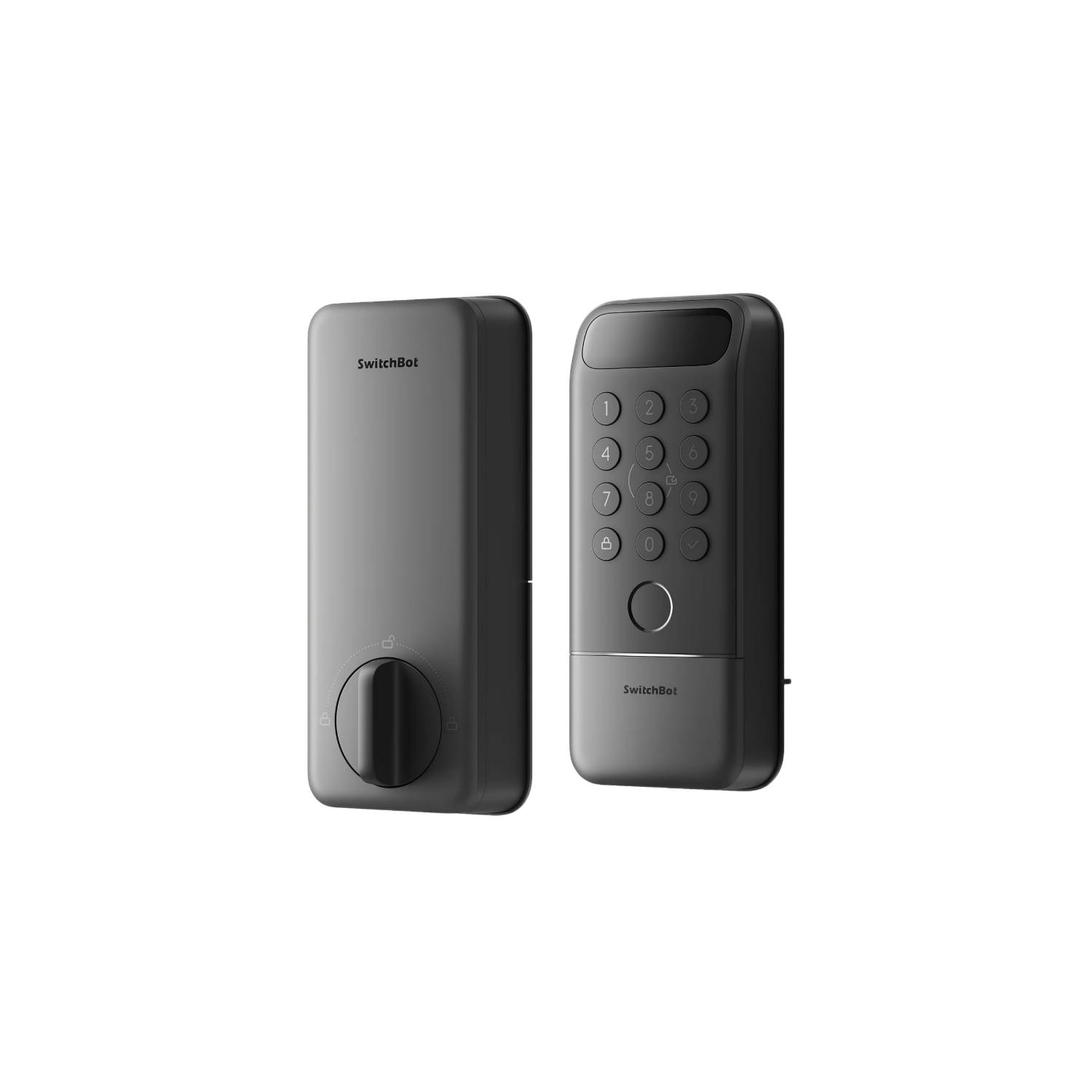
The SwitchBot Lock Vision Pro’s big claim to fame is its 3-way biometric unlocking. In addition to standard fingerprint support, that adds facial unlock (which is also available on the non-Pro Lock Vision) as well as palm vein recognition — you just hold you hand out in front of the lock to open. Beyond the biometrics, we’ve also got regular PIN entry, NFC card support, app-based unlocking, auto proximity unlocking, and even a physical key for backup.
I defy you to actually get locked out due to a lack of power with the Lock Vision Pro.
I won’t bore you too much with setup, because honestly, there’s not much to know. If you’ve installed one smart lock, you’ve installed them all, and I didn’t even need to glance at the manual to get the lock physically installed. You just remove your old deadbolt, screw in the new parts, and thread the cable through the door between lock front and lock back. Even if you’ve never thought twice about installing a lock before, the step-by-step instructions are actually printed on nice, big paper (no constantly peeking at your phone needed) with useful templates to guide you along the way.
On the front you’ve got all your keypad, the hidden keyway, and all the lock’s sensors. The inside back half houses the thumbturn, battery pack, and backup battery. This power system is one of my favorite parts of the Lock Vision Pro. The main rechargeable battery pack comes out and has its own USB-C port, so you can just charge it wherever it’s convenient. And when you’re charging the battery, or accidentally let it run out of power, there’s a backup lithium cell that’s rated for 500 emergency unlocks. If you let even that one run down, there’s also a hidden USB-C port on the lock’s bottom edge where you can plug in a power bank for emergency opening power. I defy you to actually get locked out due to a lack of power with the Lock Vision Pro.

Stephen Schenck / Android Authority
Aside from screwing the lock in place and charging up its battery, there’s only one more piece of hardware setup: Mounting a magnet to assist with the lock’s closure detection and empower some of its auto-lock features. I appreciate the utility here, but I hate the way this looks, especially with the magnet standing out so plainly from your door’s trim.
If there’s one other thing I really dislike about the Lock Vision Pro hardware, it’s SwitchBot’s choice of materials. According to the company, the lock is made from a combination of zinc alloy, polycarbonate, and ABS. While it may be metal within, all those external surfaces are made out of plastic — and it doesn’t feel particularly robust. I suspect it’s just going to take one clumsy bump when the backup key door is open to snap that piece right off. At the least, plastic is easy to waterproof, and this unit boasts an IP65 ingress rating.
No shortage of ways to authenticate and unlock

Stephen Schenck / Android Authority
If you’ve never heard of palm vein unlocking before, you’re probably far from alone. As biometric authentication goes, this is definitely a newer one. The basic idea behind it is that your blood absorbs infrared light, so by illuminating your palm with an infrared light source, a camera can then look for the darker spots, which represent vascular regions. Much like a fingerprint, this arrangement is believed to be unique to individuals, letting it function to positively authenticate you.
Adding a new palm is very easy — you just pull up the screen in the SwitchBot app, and when prompted to, hold your palm up, facing the lock. And while you’re at it, you might as well add your other hand, too. To unlock, you repeat that same gesture — pretend you’re giving the lock an Iron Man blast. In my testing, authentication has worked pleasantly swiftly, and even functions well in the dark.

Stephen Schenck / Android Authority
Compared to palm vein authentication, 3D face scanning doesn’t work quite as well. While it may feel more convenient to just look at the lock in order to open it, the biggest issue I’ve found is that it struggles to operate in low-light conditions. That said, it’s just as fast as palm scanning when you’re sufficiently illuminated.
Fingerprint unlocking is pretty bog-standard in it implementation here, with a dedicated scanner just below the lock’s keypad. So far, it works decently well at recognizing fingers it’s been trained on, although I do wish there were the option to add more scans per finger, as the training data only uses a handful of samples (pun not intended).
Pretend you’re giving the lock an Iron Man blast.
Whether you lack faith in the robustness of biometrics, or just like doing things the not-even-that-old-fashioned way, you’ll never go wrong using your PIN to unlock. All these options can be set up either permanently or temporarily, allowing you to grant limited access to a housesitter or guest, while automatically rescinding it later.

Stephen Schenck / Android Authority
Finally, there’s the ability to pair the lock to an NFC keycard, and tap to unlock. I was hoping to maybe use an existing MIFARE card I had on hand for playing with my Flipper Zero, but SwitchBot only supports this mode with its own cards. At three for $15, it’s not like they’re expensive or anything, and I can appreciate why SwitchBot wants you using trusted hardware here.
Automating all the things

Stephen Schenck / Android Authority
I strongly prefer a manual approach to locking and unlocking smart locks, but if you’re one to lean all the way in for anything promising a little extra automation, the Lock Vision Pro is happy to accommodate, with a mix of auto-lock and auto-unlock options.
The standard auto-lock lets you set a delay, choosing how long the door needs to be closed before the Vision Pro will lock itself. This relies on that magnetic frame sensor, and once you can get that installed correctly and calibrated, auto locking functions just as promised.
There’s also a re-lock option designed to automatically lock after being unlocked for a set period of time, regardless of whether the door is open or closed. I just can’t quite figure out why I’d be worried about locking the lock with my door open.
If you’re one to lean all the way in for anything promising a little extra automation, the Lock Vision Pro is happy to accommodate.
Maybe the biggest quality-of-life feature here, though, is auto-unlocking. You set this up with a combination of a geofence set around the lock’s location, and the status of the wireless connection with your phone. First you have to leave the geofenced zone and re-enter — the lock wants to be sure you actually went somewhere, and aren’t just hanging around the house. Once you return, your phone looks for the lock’s Bluetooth signal, and finally unlocks when you’re in range.
I’ve had mixed experiences with systems like this on other smart locks, but SwitchBot’s implementation here worked nicely in my testing. That said, this feature is still in beta, so your mileage might vary.
An app of its own, but happy to play with others

Stephen Schenck / Android Authority
Your main way of interacting with the Lock Vision Pro will be through SwitchBot’s app, which acts like a hub of sorts for the company’s devices. I already had it installed after picking up a cheap SwitchBot wireless temperature/humidity sensor a few months back, and adding the lock was nice and simple.
I’m admittedly not a huge fan of the SwitchBot’s app layout — there’s far too much just dumped together under “Settings,” and I’d like many of these options placed more visibly in the main UI, which instead prioritizes features like “Emergency Unlock” that you’re unlikely to frequently need. That said, it’s reasonably full featured and — once you finally figure out where everything lives — easy enough to use.
If you’d rather steer clear of that app, once you have all the authentication and behavior options configured how you like them, you can always just keep an eye on lock status and trigger lock/unlock operations through Google Home. Setup here wasn’t quite as smooth as I’d like — the lock connects to your broader smart home with the help of Matter. In theory, that should be easy: Just scan the QR code or enter the printed pairing code to get started. In practice, pairing just failed to complete multiple times, didn’t offer any sort of actionable error message, and then randomly succeeded without me having done anything different. Once that obstacle is crossed, at least, you won’t need to repeat it.
SwitchBot Lock Vision Pro review verdict: Big on features

Stephen Schenck / Android Authority
All told, the SwitchBot Lock Vision Pro is a very capable smart lock, with absolutely no shortage of authentication options, offering you a whole lot of flexibility in how you set up and operate it. Having multiple biometric pathways is fantastic, especially if you’re dealing with children who may have trouble remembering a code (or who are practically guaranteed to lose a physical key). The palm unlocking works far better than I ever expected, and even the face unlocking is well executed.
I don’t love the SwitchBot app, admittedly, but you also won’t need to spend a ton of time in here after initial hardware and user setup is over. And with third-party integration, you’re free to connect to Google Home, Samsung Smart Things, Apple Home, or even Home Assistant.
I do wish the hardware felt a bit beefier, and I strongly prefer the full-metal build of smart locks like my go-to Schlage Encode. That one costs a bit more than the Lock Vision Pro, though, and doesn’t offer any biometric authentication at all. Considering what you get for your money here, SwitchBot’s lock makes for a pretty tempting smart home investment.
Fantastic assortment of biometric options • Multiple redundant power backup systems • Easy installation
MSRP: $229.99
More biometric authentication options than you’ll know what to do with.
SwitchBot’s Lock Vision Pro offers users numerous biometric unlocking options, including fingerprint, 3D face scanning, and even palm vein reading. The smart lock provides integration with Google Home via Matter.
Positives
- Fantastic assortment of biometric options
- Multiple redundant power backup systems
- Easy installation and smart home integration
- Reasonably priced
Cons
- Plastic body doesn’t feel incredibly robust
- App experience lacks polish
- Magnetic door sensor is a bit awkward
Thank you for being part of our community. Read our Comment Policy before posting.